What swaps carry through to
- The active program schedule
- Pre-filled weights and rep targets on phone workouts
- Sessions sent to your Garmin watch
- Progression tracking (your swapped exercise builds its own progression history)
Before you start
You must be on a program review screen: either Your Program (after Build My Program) or a Popular Methods detail screen.Swap an exercise
1
Open a program review screen
- Open Kilo and go to the Home tab.
- On the Start a Training Program card, tap Start Program.
- Pick Build My Program and answer the questions, or tap Browse Popular Methods and select a method.
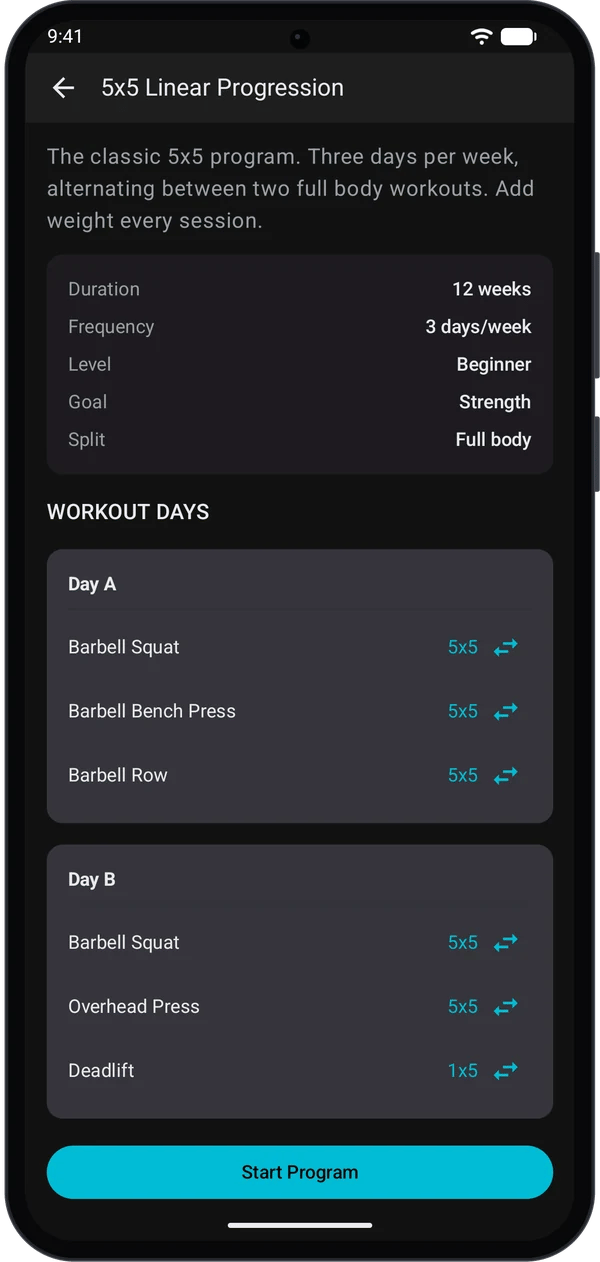
- You should now see the program’s WORKOUT DAYS list with each exercise on its own row.
2
Tap the swap icon
- Find the exercise you want to replace.
- Tap the swap icon (the left-right arrows) on the right side of the row.
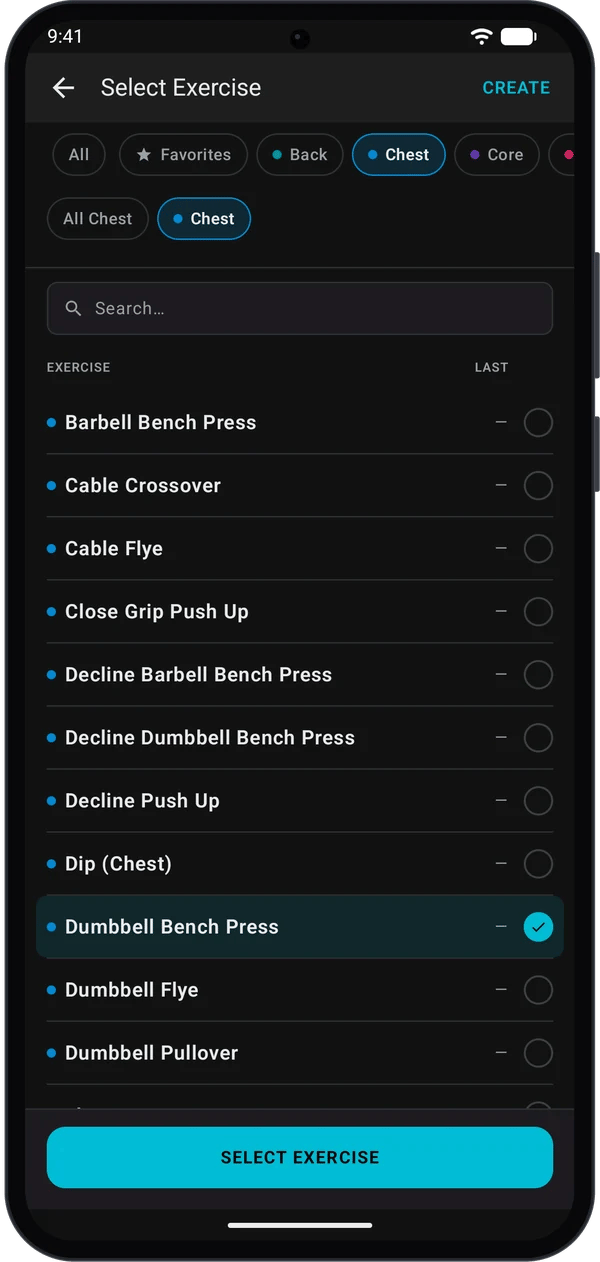
- The exercise picker opens.
3
Pick the replacement exercise
- The picker opens pre-filtered to the same muscle group as the original.
- Tap the exercise you want.
- Tap Select Exercise.
4
Choose the swap scope (multi-day exercises)
If the exercise appears on more than one workout day, Kilo asks Replace [Exercise] in how many days? and lists the days it appears on. If it appears on one day only, the swap applies right away and you skip this step.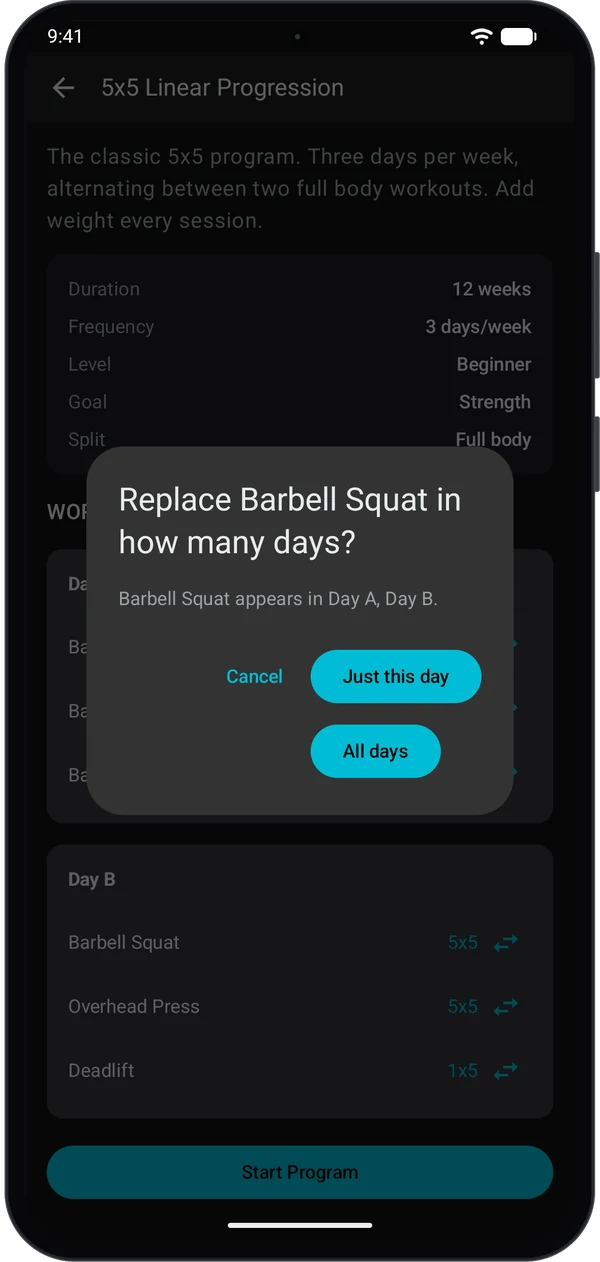
5
Check the swapped rows
Each swapped row now shows the new exercise name at the top and a was: [Original Exercise] caption underneath, in muted text.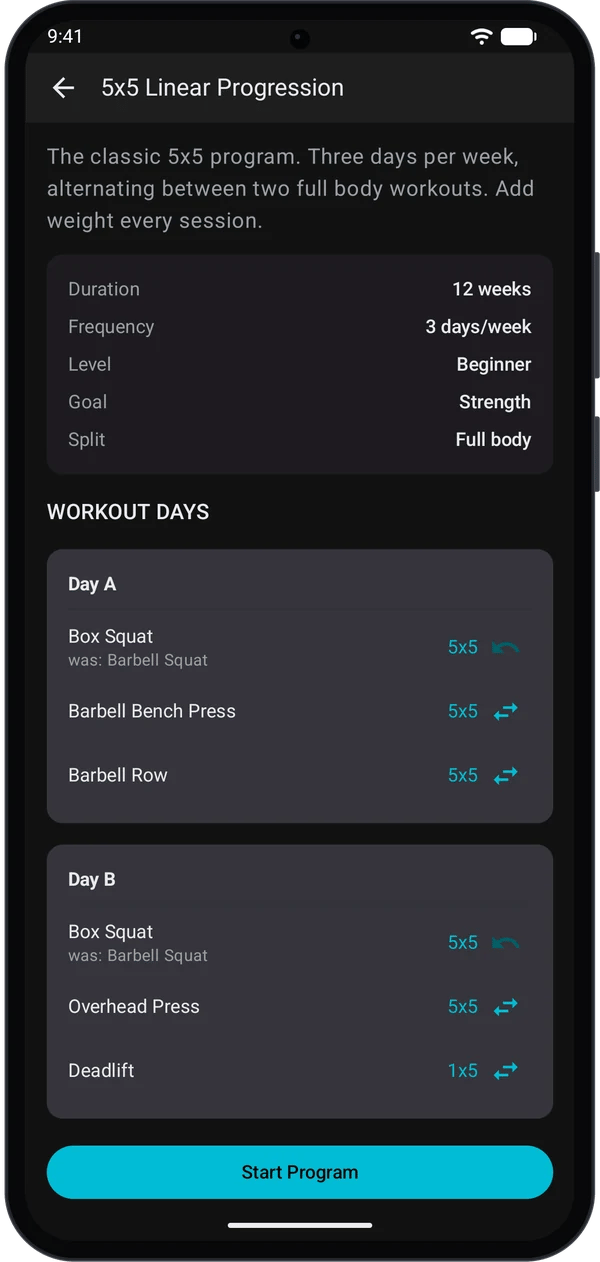
The exercise is swapped. The undo arrow has replaced the swap icon on that row.
6
Activate with your swaps
- When you’re happy with all your swaps, tap Start Program at the bottom of the screen.
- Your swaps are saved with the program. Every scheduled session (on phone or watch) will use your replacement exercises.
Undo a swap
If you change your mind:- Find the swapped row (it shows was: … under the exercise name).
- Tap the undo icon on the right side.
- The original exercise is restored on that row immediately. No confirmation needed.
Quick fixes
Swap icon missing
Swap icon missing
You’re already on an active program. Swaps must be made before tapping Start Program. End the program and start a new one if you need to change an exercise.
Picker shows the wrong muscle group
Picker shows the wrong muscle group
The picker filters to the original exercise’s primary muscle group. To pick from a different group, tap All or another muscle group at the top of the picker.
My swap applied to too many days
My swap applied to too many days
You picked All days when you only meant one. Tap the undo icon on each row that should keep the original exercise.
Watch is sending the original exercise
Watch is sending the original exercise
This is fixed in recent versions. Make sure you’re on the latest Kilo and your watch app is updated. The swapped name should appear on the watch.
Progression chart looks empty after a swap
Progression chart looks empty after a swap
Swapped exercises start their own progression history. The chart fills in as you complete sessions with the new exercise.