Watch controls
Kilo is built for touch. On watches with buttons, you can also use these:To enter reps and weight, use the touchscreen. On touchscreen watches, the lists do not highlight the item that Up and Down select, so tapping is easier.
1. Start the workout
1
Open Kilo on your watch
Launch Kilo on your watch. It shows Waiting for phone routine.
2
Send the routine from your phone
On your phone, open the routine, tap Start Workout, then choose Start on Watch.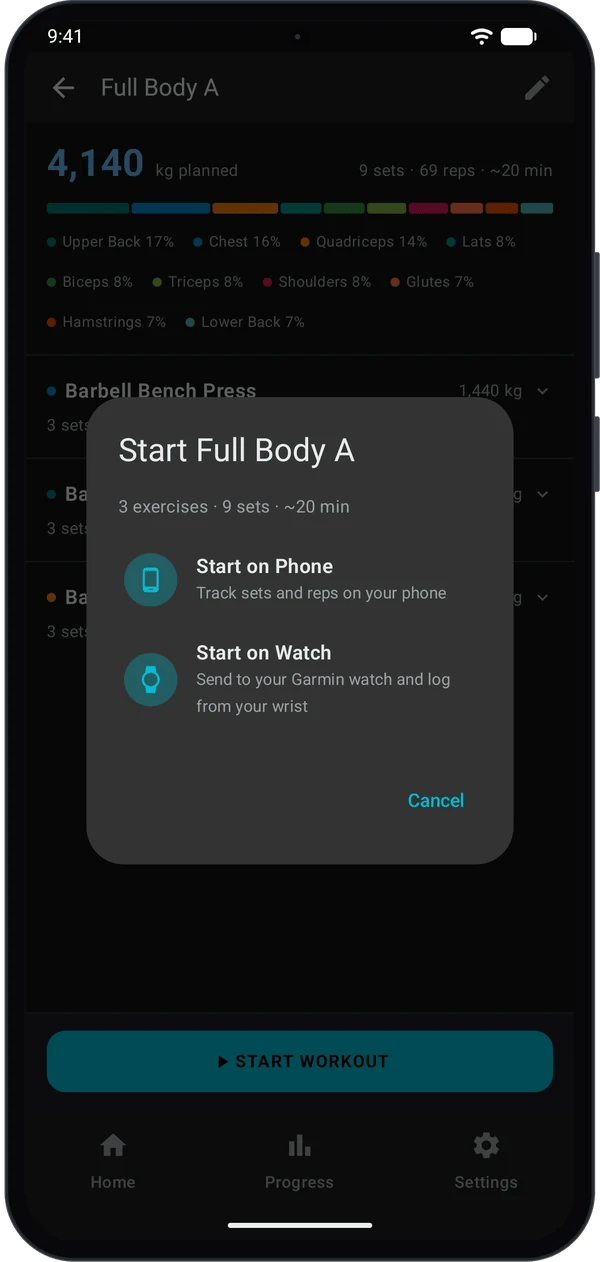
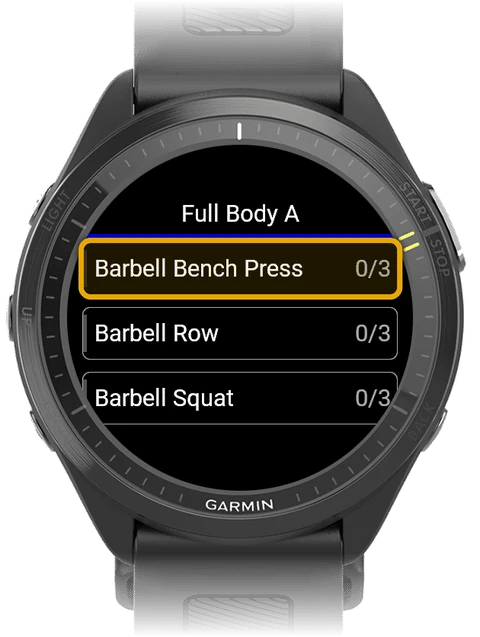
The watch shows the exercise list and starts recording a Garmin Strength Workout activity.
2. Log your sets
1
Open an exercise and a set
- Tap an exercise. The number on the right shows sets done out of sets planned.
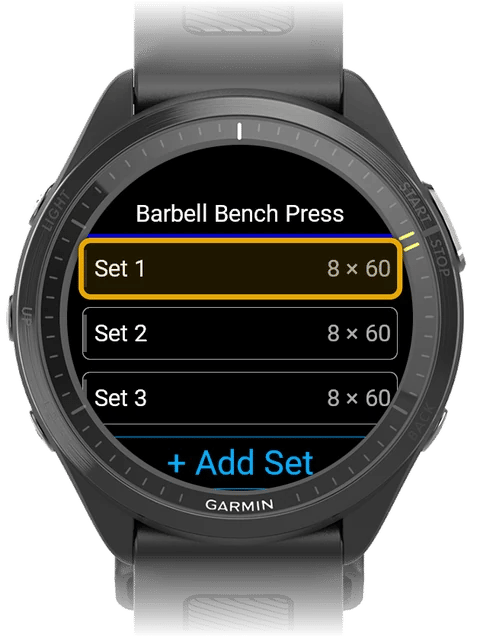
- Tap a set. Each row shows the planned reps × weight.
2
Enter reps and weight
The set screen shows the set number, your live heart rate, and the planned reps and weight.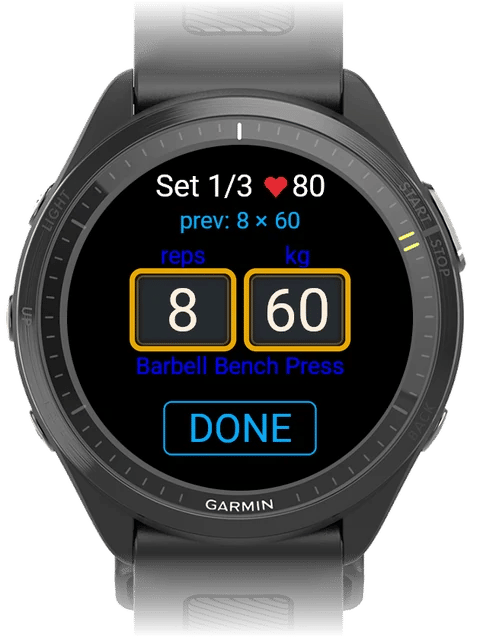
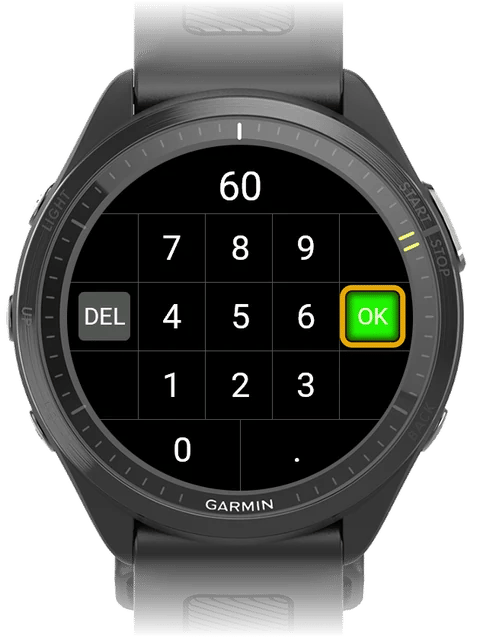
- Tap the reps box or the weight box. A keypad opens.
- Type the new value. The first key you press replaces the old value. Tap DEL to delete a digit.
- Tap OK. To close the keypad without a change, press Back.
Weight rounds to the nearest 0.25. For example, 62.3 becomes 62.25. Reps are whole numbers from 0 to 99.
3
Save the set
- Optional: if you see prev: in blue, tap it. Kilo copies the reps and weight from your last session.
- Tap DONE.
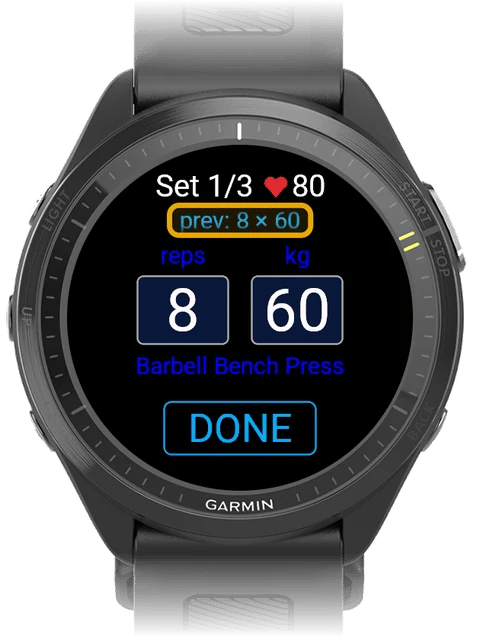
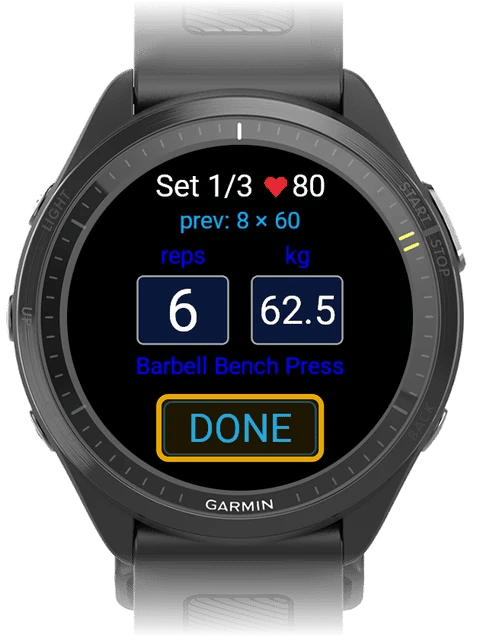
The rest timer starts.
4
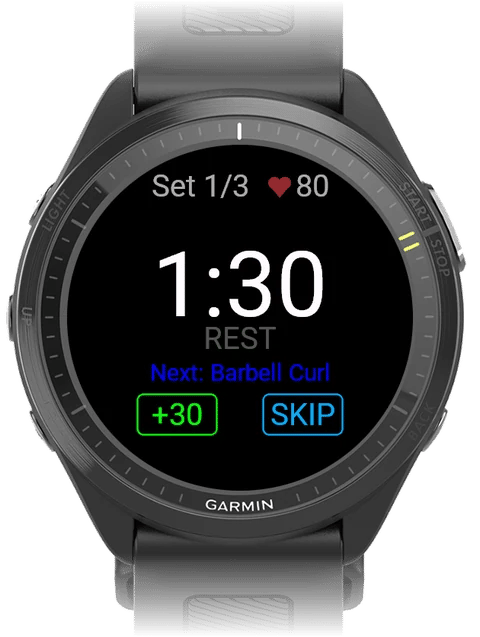
Rest
The timer counts down from the rest time in your routine. Below it, Kilo shows what comes next, for example Next Set: 8 × 60 kg or Next: Barbell Row.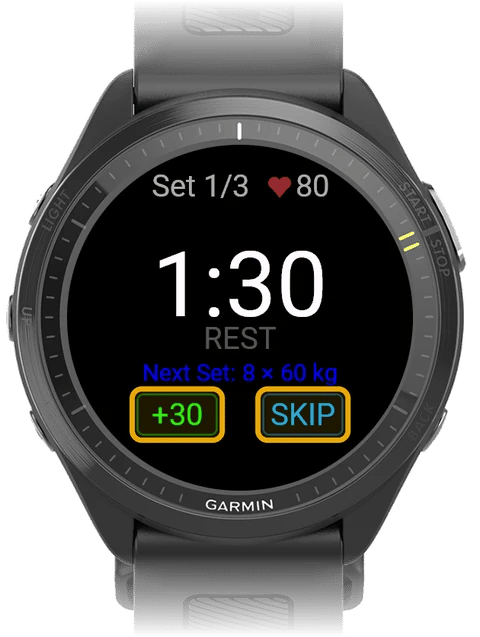
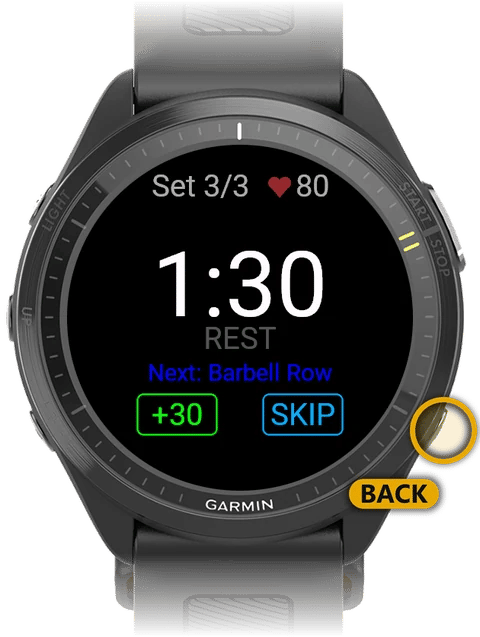
- Tap +30 to add 30 seconds.
- Tap SKIP, or press Back, to end the rest early.
5
Move to the next exercise
Logged sets show a green tick with the reps and weight you logged. After the last set, the watch returns to the set list. Press Back to go to the exercise list, then tap the next exercise.In the exercise list, the count is grey before you start, blue while in progress, and green when all sets are done.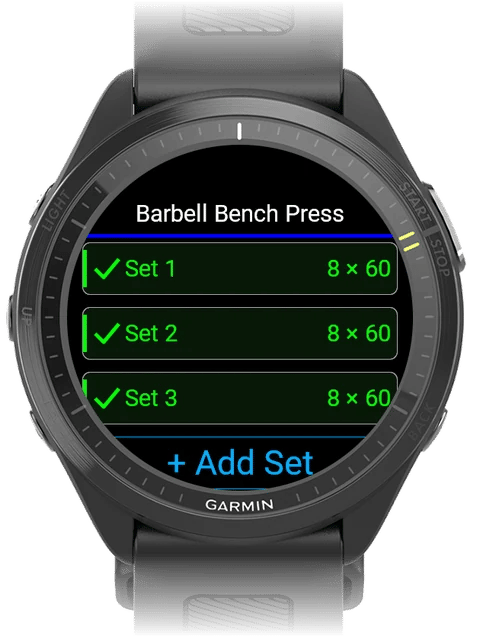
Mark warm-up, drop, and failure sets
On the set screen, tap the top line (for example Set 2/3) to change the set type. Each tap moves to the next type: Set (normal) → W (warm-up) → D (drop set) → F (failure) → Set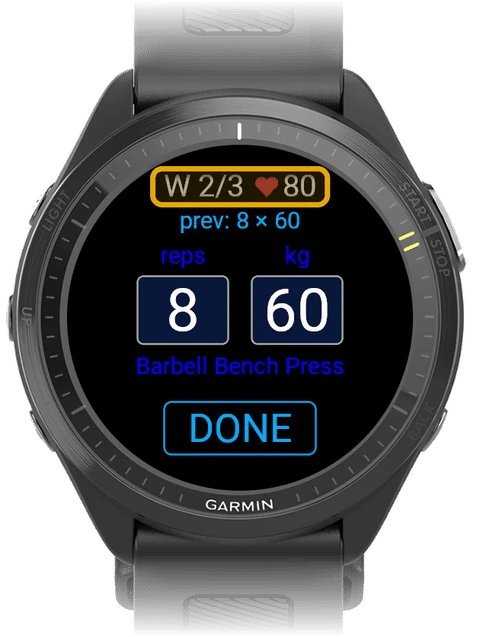
Supersets
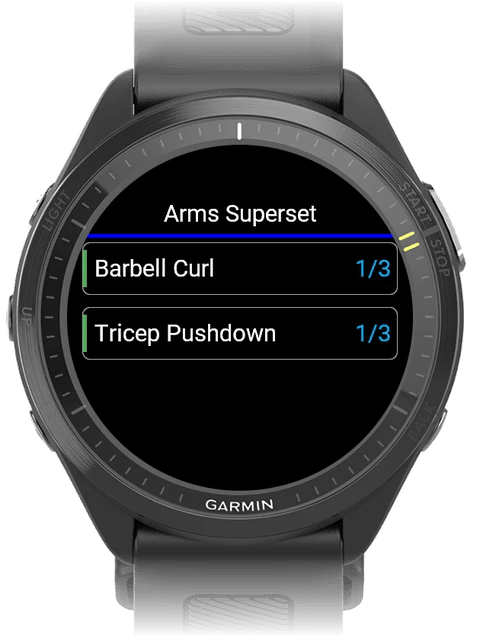
Create supersets in the phone routine editor: long-press an exercise, tap Select for superset, select the other exercises, then tap Create Superset. On the watch, exercises in a superset have a coloured bar in the same colour as on the phone.- When you save a set, the watch opens the next exercise in the superset. There is no rest between them.
- After the last exercise in the superset, the rest timer starts and shows the first exercise as Next.
- After the rest, the watch opens the first exercise again. Tap the next set to continue.
Program workouts
When you start a program session on the watch, the line under the set number shows your program target instead of prev:. This line is for information only. You cannot tap it. See How Auto-Progression Works.3. Finish the workout
1
End the workout
Go to the exercise list and press Back.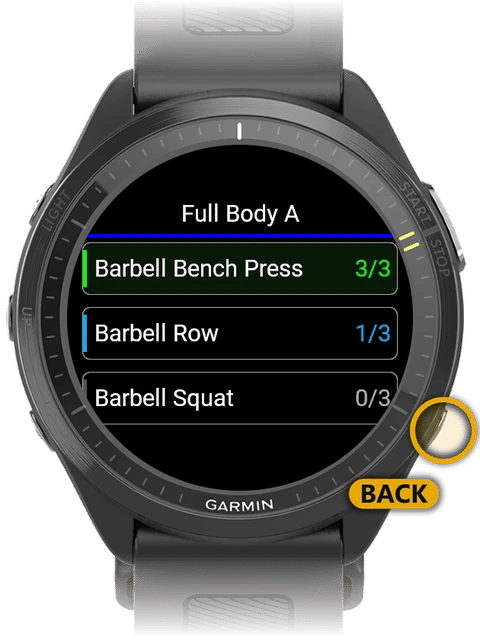
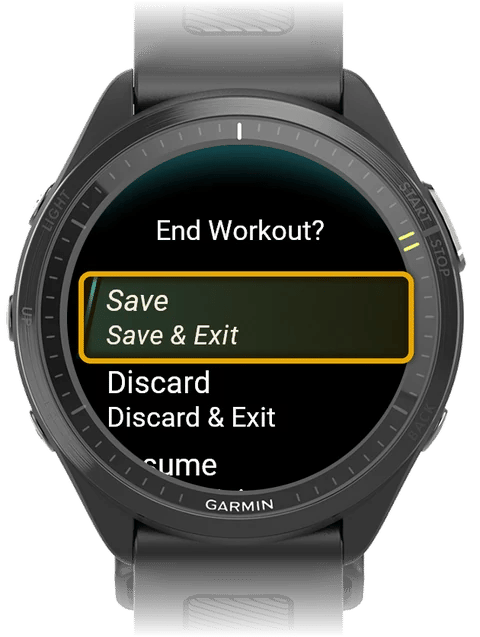
2
Choose Save, Discard, or Resume
3
Check your summary
After you save, the watch shows a summary: total volume, exercises, sets, time, average heart rate, and calories. Press Back to close it. If you logged no sets, the watch skips the summary.
The workout is in Kilo on your phone.
Quick fixes
The watch ignores a new routine
The watch ignores a new routine
A workout is already running on the watch. Save or discard it, then send the routine again.
No prev: line on the set screen
No prev: line on the set screen
It shows only when you have logged that exercise in Kilo before. Program workouts show a target instead.
The rest timer did not start
The rest timer did not start
This is expected after you edit a logged set, before a drop set, and between exercises in a superset. To change rest times, open the routine editor on your phone and tap the REST chip.
Wrong weight unit
Wrong weight unit
On your phone, go to Settings → WORKOUT → Display Units. Then send the routine to your watch again.
No heart rate on the set screen
No heart rate on the set screen
The heart rate shows only when the watch has a reading. Wear the watch snugly above your wrist bone.
Waiting for phone or Sync Incomplete when you save
Waiting for phone or Sync Incomplete when you save
Keep your phone nearby with Garmin Connect running, then tap Retry. If it still fails, tap Save. Unsent sets stay on the watch.
Next steps
Build a training program
Follow a multi-week plan and log each session from your watch.
How auto-progression works
See how Kilo picks your targets for the next session.