What a backup contains
A backup is a single JSON file. It includes:- Workouts and sets, including workout notes
- Routines (templates) and their exercises
- Training programs and your progress through them
- Exercises, including ones you created
- Personal records
- Your app settings, such as units, theme, rest timer and chart settings
- Your profile, including your name, height, weight and profile photo
- Your Pro status and trial days (see Restore on a new phone)
Set up Auto-Backup
Auto-Backup is on by default.1
Open the backup settings
Go to Settings and scroll to DATA & BACKUP.
2
Choose a backup mode
With Auto-Backup on, choose a Backup Mode. See the table below.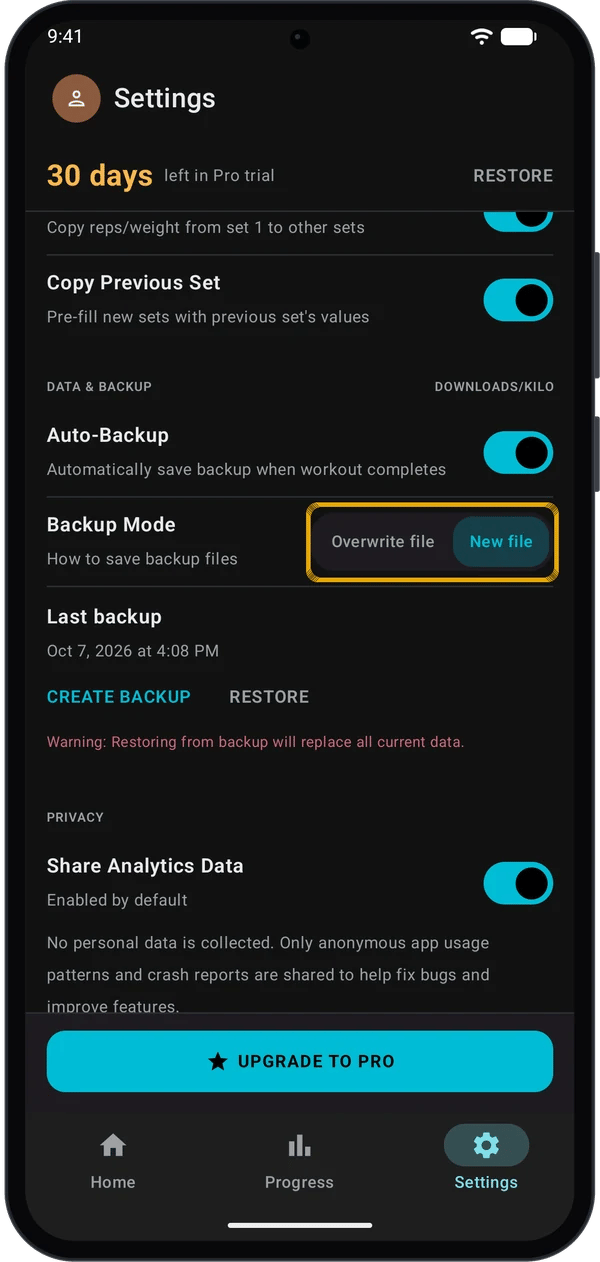
3
Finish a workout
Kilo writes a backup each time you complete a workout. The Last backup line shows the date and time of the last successful backup.
If an automatic backup fails, Kilo shows an Auto-backup failed message. Successful backups show no message.
Backup modes
Where backup files are saved
Automatic backups are saved to Downloads → Kilo. The DOWNLOADS/KILO label in the DATA & BACKUP heading shows this location.Create a backup manually
1
Tap CREATE BACKUP
Go to Settings → DATA & BACKUP and tap CREATE BACKUP.
2
Choose where to save
The file picker suggests a name such as 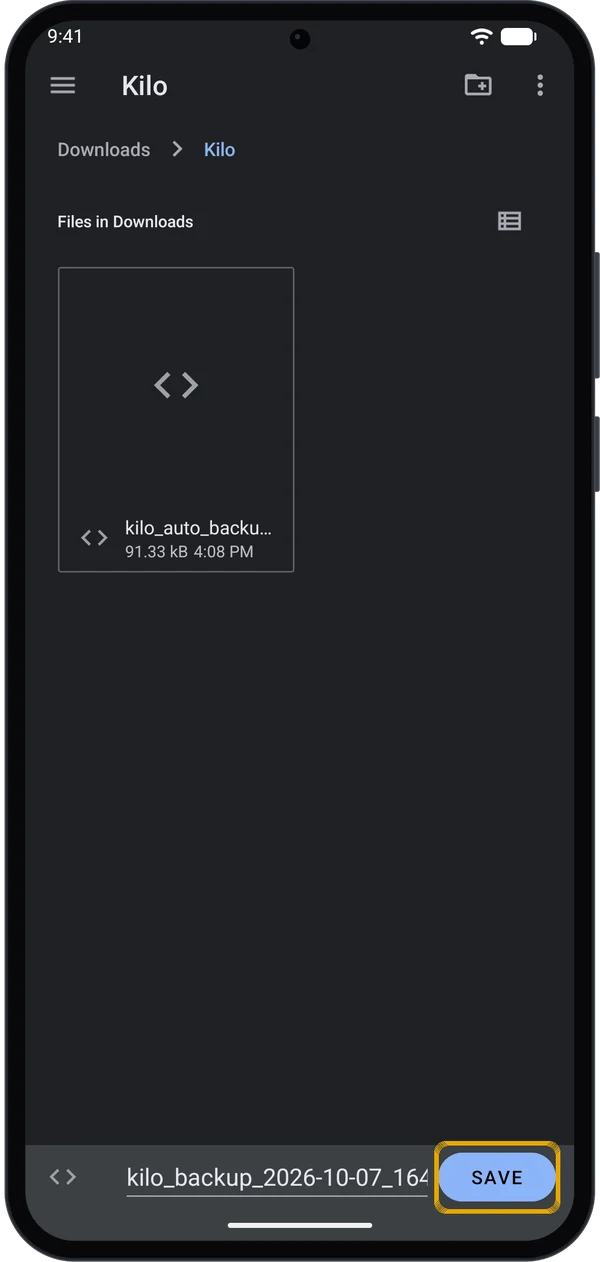
kilo_backup_2026-10-07_164749.json. Pick a folder, then tap Save.The backup file is in the folder you chose. The Last backup line does not change after a manual backup.
Restore a backup
1
Tap RESTORE
Go to Settings → DATA & BACKUP and tap RESTORE.
2
Pick the backup file
Select a backup
.json file. It can be in any folder on your phone.3
Confirm
Kilo shows Restore from Backup?. Tap Restore to replace your data, or Cancel to stop. Nothing changes until you tap Restore.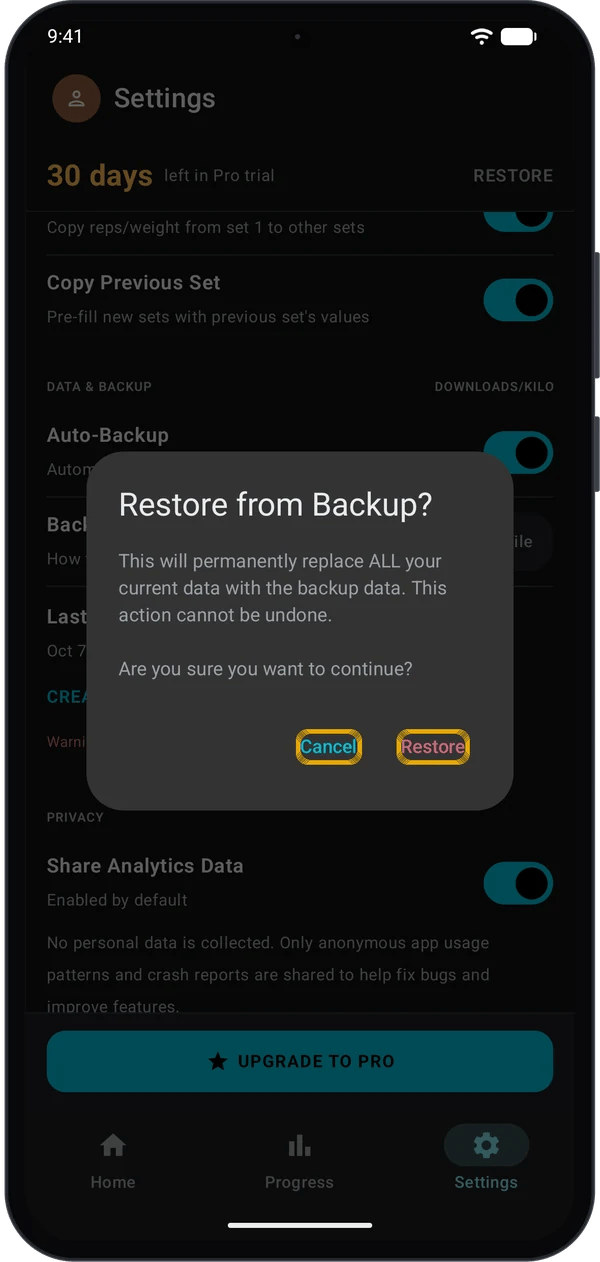
4
Restart Kilo
When the restore finishes, Kilo says Restore completed! Restart the app to see changes. Close Kilo and open it again.
After you restart, your routines, workouts and programs match the backup.
Restore on a new phone
1
Create a backup on the old phone
Follow Create a backup manually. Use the newest file in Downloads → Kilo if Auto-Backup is on.
2
Copy the file to the new phone
Move the
.json file to the new phone by any method you use for files.3
Install Kilo and restore
Install Kilo on the new phone and open it once. Then go to Settings → DATA & BACKUP → RESTORE, pick the file, and tap Restore.
4
Restart Kilo and check your plan
Restart Kilo. Your workouts and routines are back. Your name, profile photo and app settings are not in the backup, so set them again.
The 30-day trial is not in the backup. On a new phone, the trial starts the first time you open Kilo there. Pro status is also not in the backup. Check your plan in Settings after you restore.
Quick fixes
Last backup says Never
Last backup says Never
Auto-Backup has not completed a backup yet. Finish a workout with Auto-Backup on. A manual backup does not update this line.
Restore says Invalid backup file
Restore says Invalid backup file
The file is not a Kilo backup. Choose a
kilo_backup_ or kilo_auto_backup file.Restore failed
Restore failed
The backup may come from a newer version of Kilo. Update Kilo from the Play Store, then restore again. If it still fails, try a different backup file.
Next steps
Free vs Pro
See what the trial and Free include.
Get started
Set up Kilo and log your first workout.