The 30-day trial
- The trial starts on the day you install Kilo. It does not need a card.
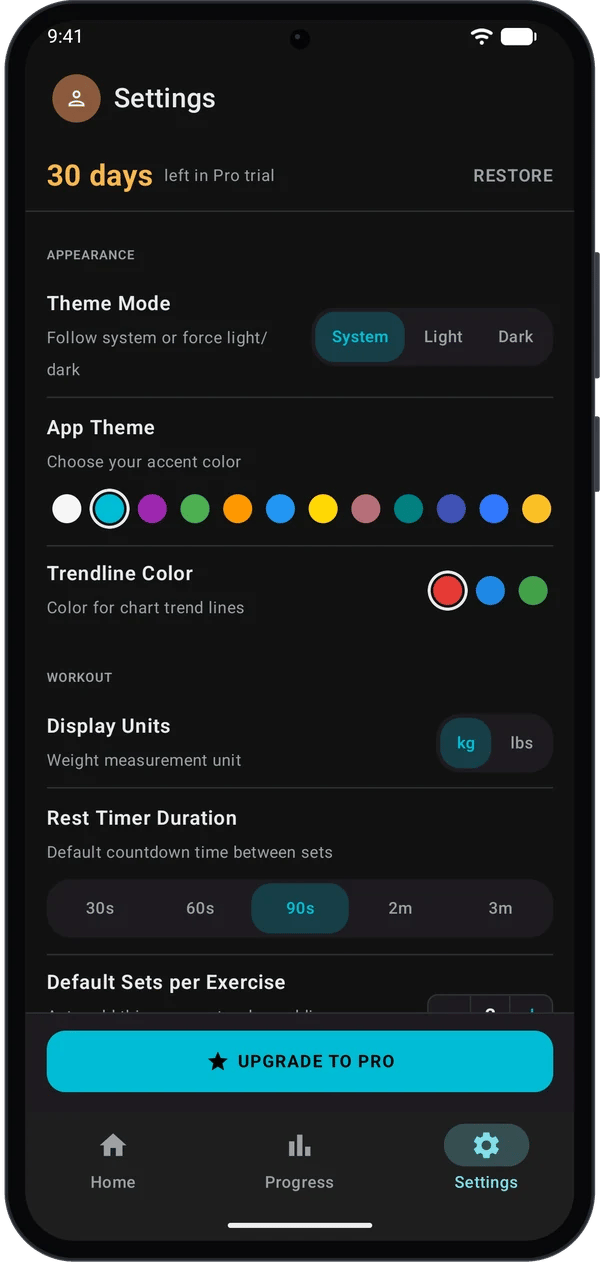
- Open Settings. The account line at the top shows how many days are left, for example 30 days and left in Pro trial.
- When the trial ends, Kilo shows a one-time Welcome to Kilo Free! message. It lists what you can still do and offers an upgrade.
Free and Pro compared
Free is not a cut-down logger. You keep unlimited workouts, PRs, 1RM and the full Garmin integration.
What you see when you reach a Free limit
- Routines: if you already have 5 routines and try to create another, Kilo shows Routine Limit Reached. Tap Upgrade to see the plans, or Maybe Later to close it. Your 5 routines are not deleted.
- Charts: on Free, the 6M and All ranges and the trendline option are locked. They stay tappable. Tapping one opens the plan screen.
Upgrade to Pro
1
Open the plan screen
Go to Settings and tap UPGRADE TO PRO at the bottom. The same screen opens when you hit a limit or tap a locked item.Kilo shows Choose Your Plan with a Compare Plans table.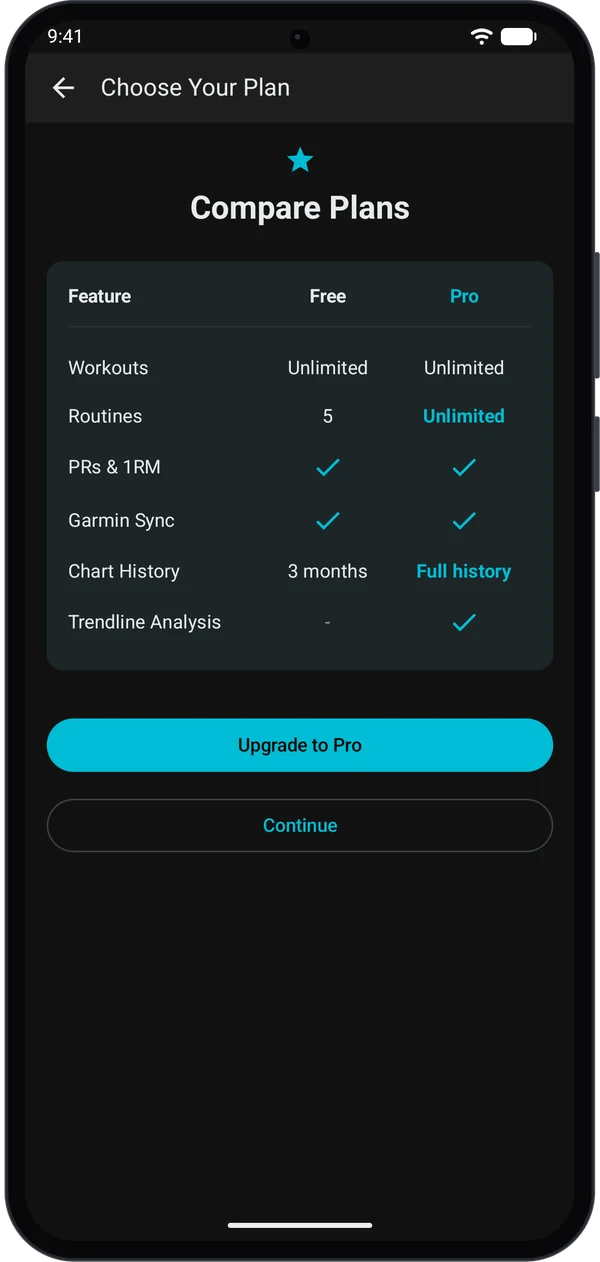
2
Tap Upgrade to Pro
To stay on Free, tap Continue or the back arrow instead.
3
Pick a plan and subscribe
The Kilo Pro screen lists the plans Google Play offers for your account. If an Annual plan is offered, it is selected for you. Tap another plan to change it, then tap Subscribe and finish in the Google Play sheet.
4
Check that Pro is active
Kilo shows Welcome to Kilo Pro!. In Settings, the account line now reads Kilo Pro with active, and the UPGRADE TO PRO button is gone.
You now have Pro: unlimited routines, all chart ranges and trendlines.
Restore a purchase
Use this if you reinstall Kilo, get a new phone, or Pro does not show after you paid. Sign in to the same Google account that bought Pro.- On the Kilo Pro screen, tap Restore Purchases.
- Or in Settings, tap RESTORE at the top right.
Manage or cancel your subscription
- Open Settings. When Pro is active, the top line shows MANAGE.
- Tap MANAGE. Kilo opens the subscription manager. Use it to see your subscription and to cancel or change it.
- You can also manage subscriptions in Google Play (profile icon, then Payments and subscriptions, then Subscriptions).
Quick fixes
I paid but Settings still shows Free
I paid but Settings still shows Free
Check that you use the Google account that paid. Tap Restore Purchases on the Kilo Pro screen. Check your connection and try again.
The Kilo Pro screen shows Unable to load subscription options
The Kilo Pro screen shows Unable to load subscription options
Kilo could not reach Google Play. Check your connection and that Google Play is up to date. Close the screen and open it again.
I have more than 5 routines and I am on Free
I have more than 5 routines and I am on Free
Your routines stay. You cannot create new ones until you are under 5 or upgrade.
I do not see the 6M and All chart ranges
I do not see the 6M and All chart ranges
They are Pro. On Free you see 1M and 3M. Tap a locked range to see the plans.
Next steps
Get started
Set up Kilo and log your first workout.
Log a workout on your Garmin watch
Garmin sync is in both Free and Pro.