What Kilo reads from a .FIT file
Workout date and time
The start time of the activity
Exercises
The exercise name that Garmin recorded for each set
Sets
Reps and weight in kg for every set
Rest
Rest periods between sets
All sets are imported as normal sets. Set types, notes and the total workout time are not imported. Bodyweight sets show 0 kg.
Exercise names
Kilo uses the exercise that Garmin recorded for each set, for example Barbell Back Squat or Barbell Bench Press. If the exercise is not in your catalogue, Kilo creates it and sets a muscle group from the Garmin category.- If Garmin recorded only a category, Kilo uses the category name, for example Row or Curl.
- If Garmin could not identify the exercise, the sets are imported under the name Unknown Exercise.
Import a .FIT file
1
Save the .FIT file on your phone
Copy the activity file to a folder on your phone, for example Downloads.
2
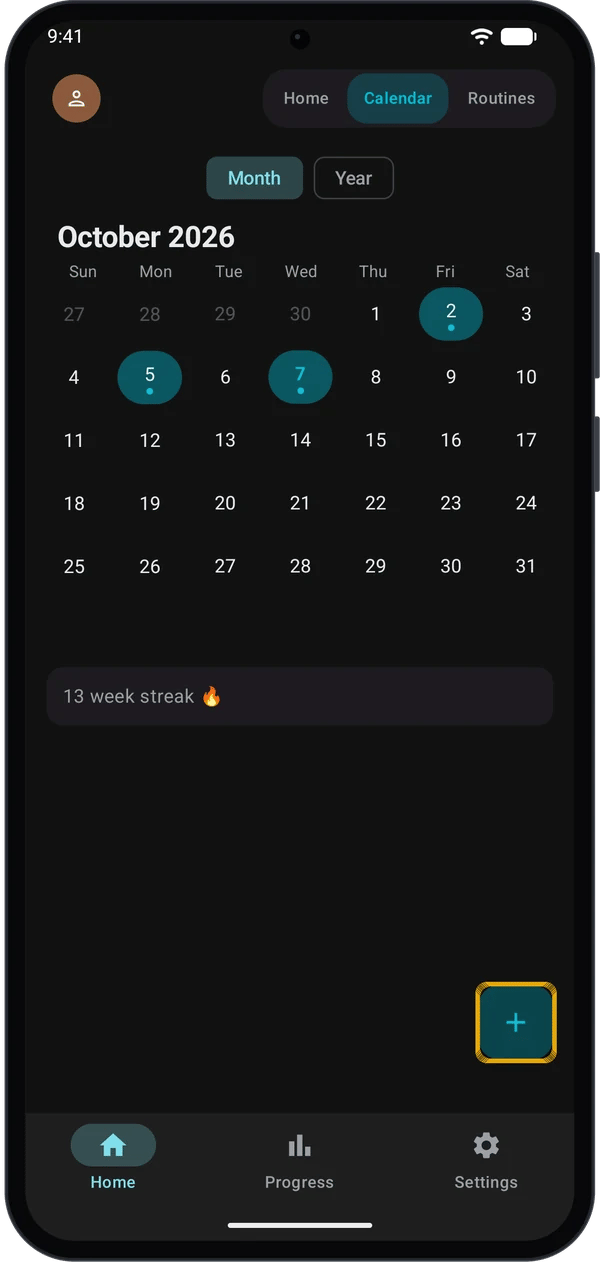
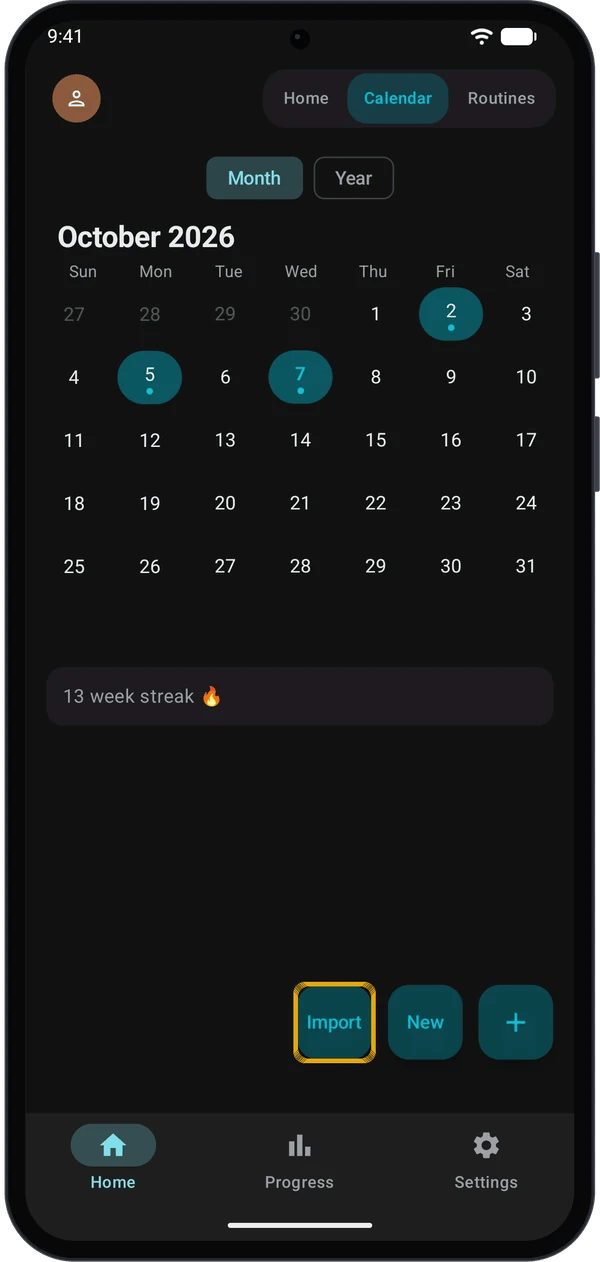
Open Import
- Open Kilo and go to the Home tab.
- Go to the Calendar tab.
- Tap + and select Import.
3
Pick the file
Select the 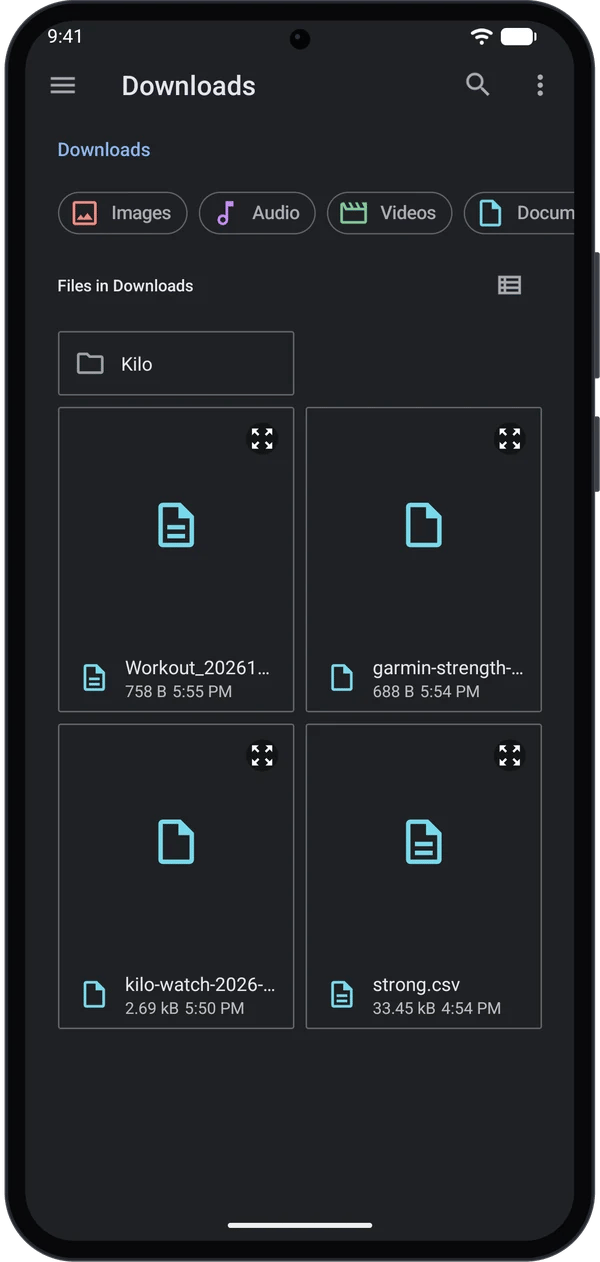
.fit file in the file picker. Kilo detects the file type. A .csv file from Hevy, Strong or Kilo is read as a CSV. Any other file is read as a .FIT file.4
Check the result
Kilo shows Import Complete with the number of workouts and exercises it imported. Tap OK. The workout appears on its date in the Calendar.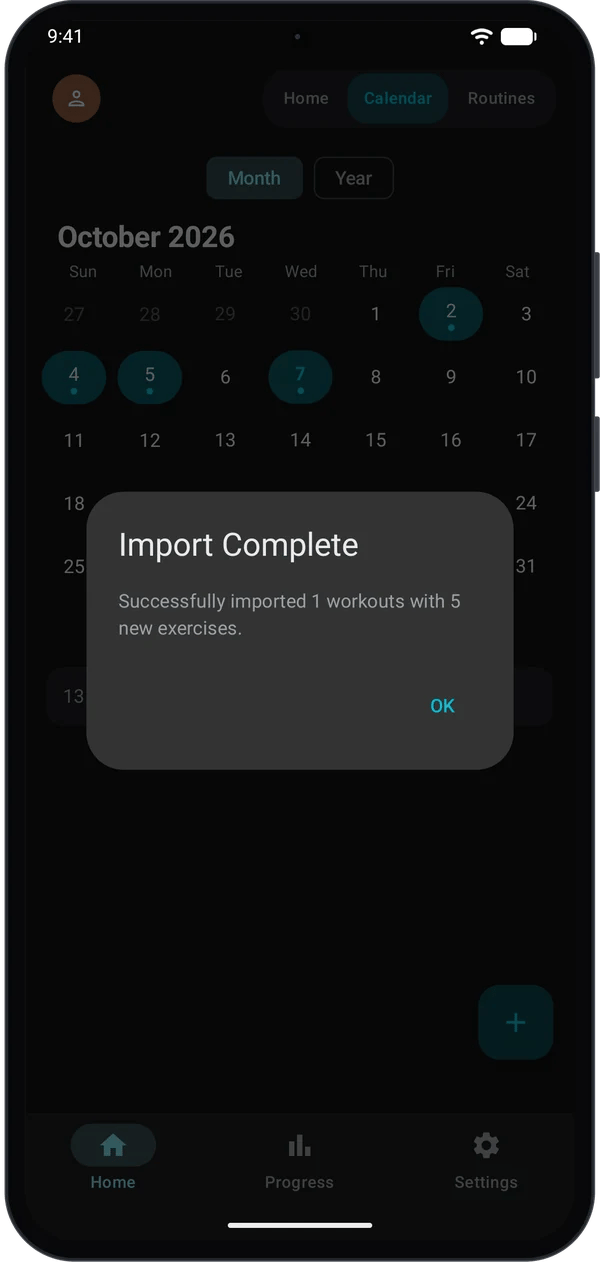
The workout shows the sets, reps and weights from your watch. Personal records are updated.
Each .FIT file holds one workout. Repeat the steps for each file.
Duplicate workouts
Kilo skips a workout if one already exists with the same start time. The result says how many were skipped.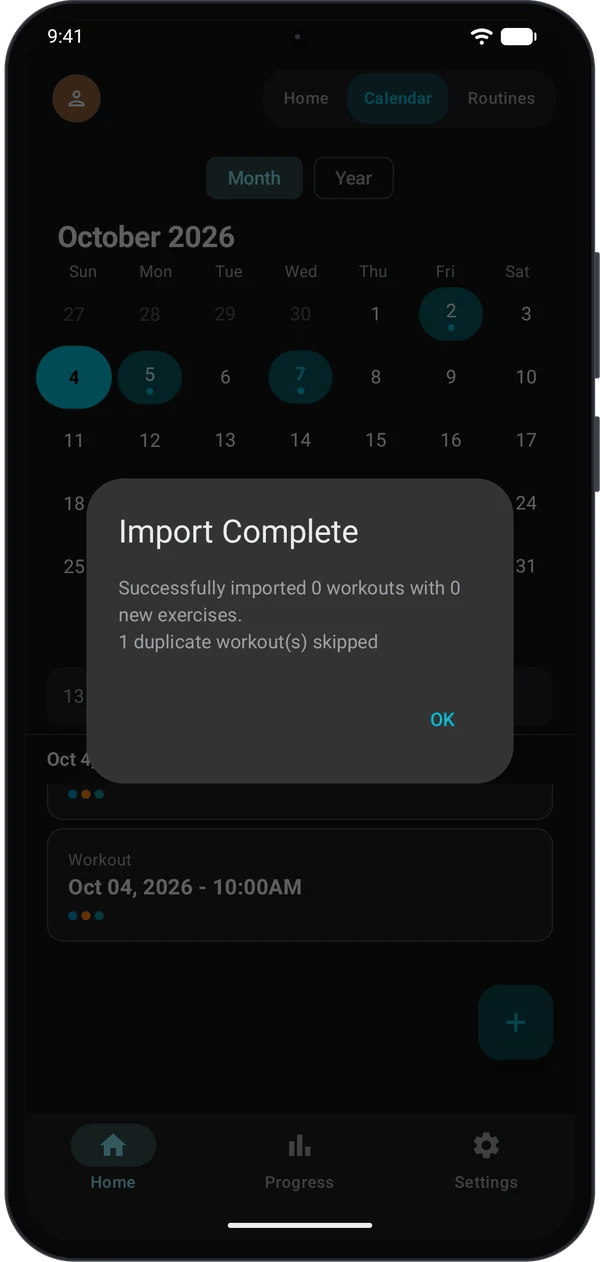
Export a workout to CSV
1
Open the workout
Go to Home → Calendar, tap the date, then tap the workout.
2
Tap the download icon
Tap the download icon at the top right. Kilo shows Workout exported to Downloads.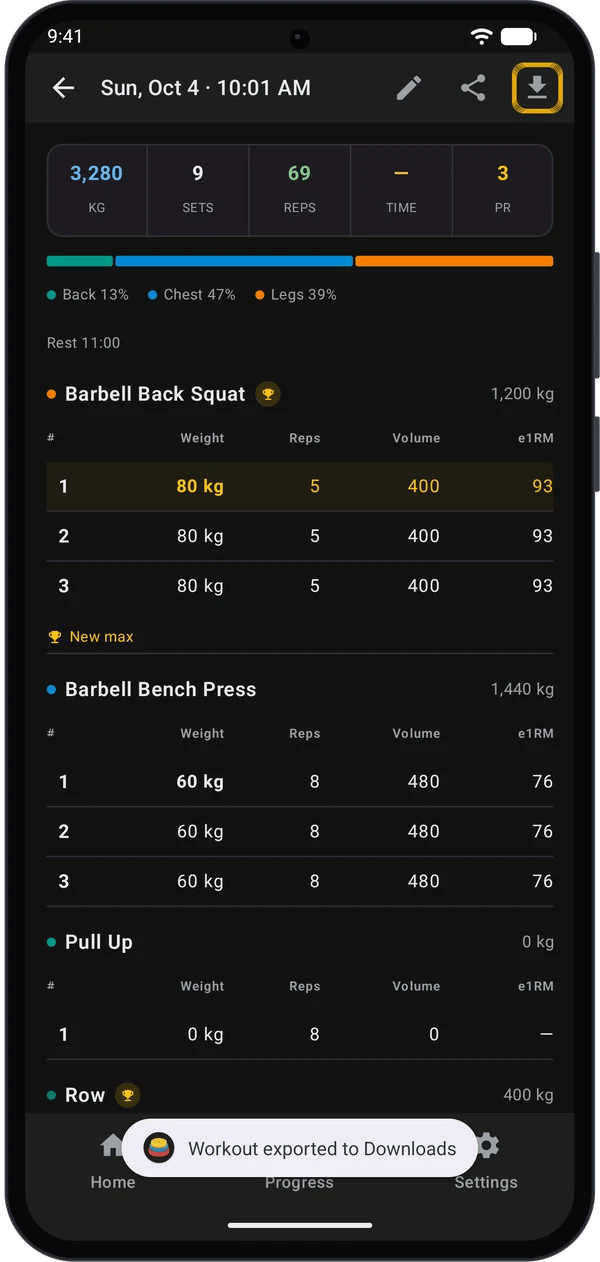
The file is in your phone’s Downloads folder, named like
Workout_20261004_1000.csv (date and start time of the workout).
Weights are always in kg. Set types, supersets and notes are not in the file. Kilo exports one workout at a time.
Import a Kilo CSV
You can import a CSV that Kilo exported. Use the same steps as for a .FIT file and pick the.csv file. The imported workout starts at the time of its first set.
Quick fixes
Import Error: Could not read this file. Is it a FIT workout file?
Import Error: Could not read this file. Is it a FIT workout file?
The file is not a Garmin activity file, or its CSV header is not from Hevy, Strong or Kilo. Check that you picked the right file.
The imported workout has no sets
The imported workout has no sets
The activity file has no set data. This happens with activities recorded by the Kilo watch app, and with Garmin activities that are not strength workouts. Delete the empty workout: long-press it in the Calendar day list and tap the delete button.
An exercise is called Unknown Exercise
An exercise is called Unknown Exercise
Garmin did not identify the exercise for those sets. Open the workout, tap the pencil icon, tap the ⋮ menu next to the exercise name and select Replace exercise.
TIME shows a dash
TIME shows a dash
The workout time is not imported from .FIT or CSV files. Only the sets and rest periods are.
Next steps
Import from Strong
Bring your Strong history into Kilo.
Import from Hevy
Bring your Hevy history into Kilo.
Back up and restore
Save all of your Kilo data in one file.
Log a workout on your watch
Record sets on your Garmin and sync them to Kilo.