Set types
1
Tap the set number
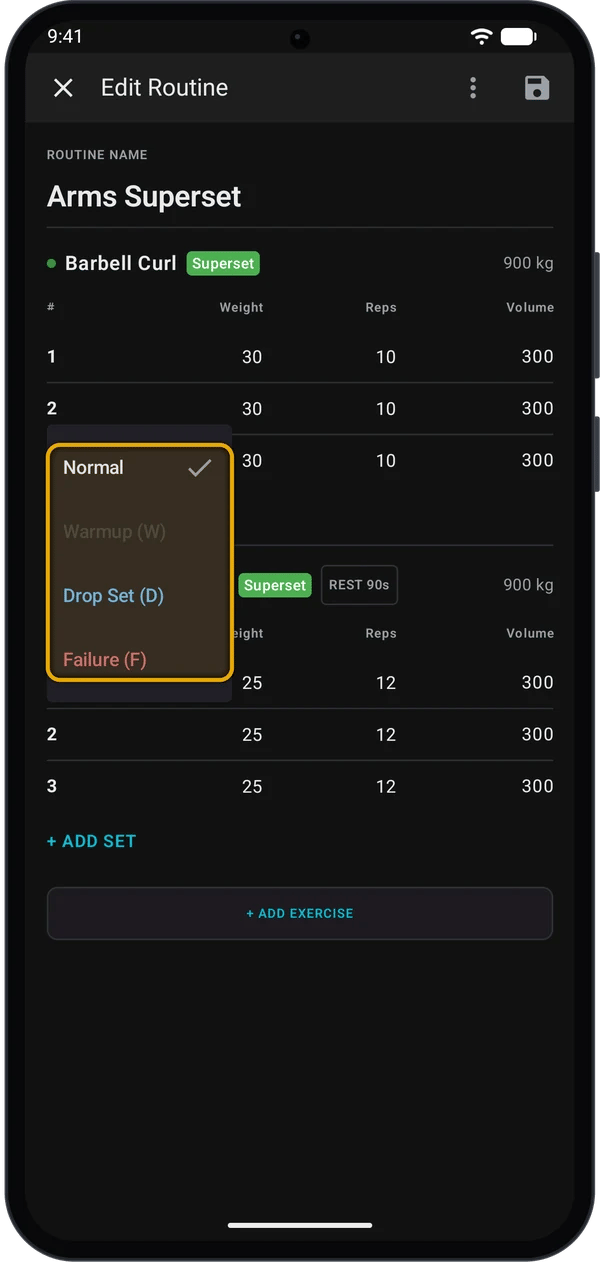
In the Active Workout screen, tap the number at the start of a set row. The same number works in the routine editor and when you edit a past workout.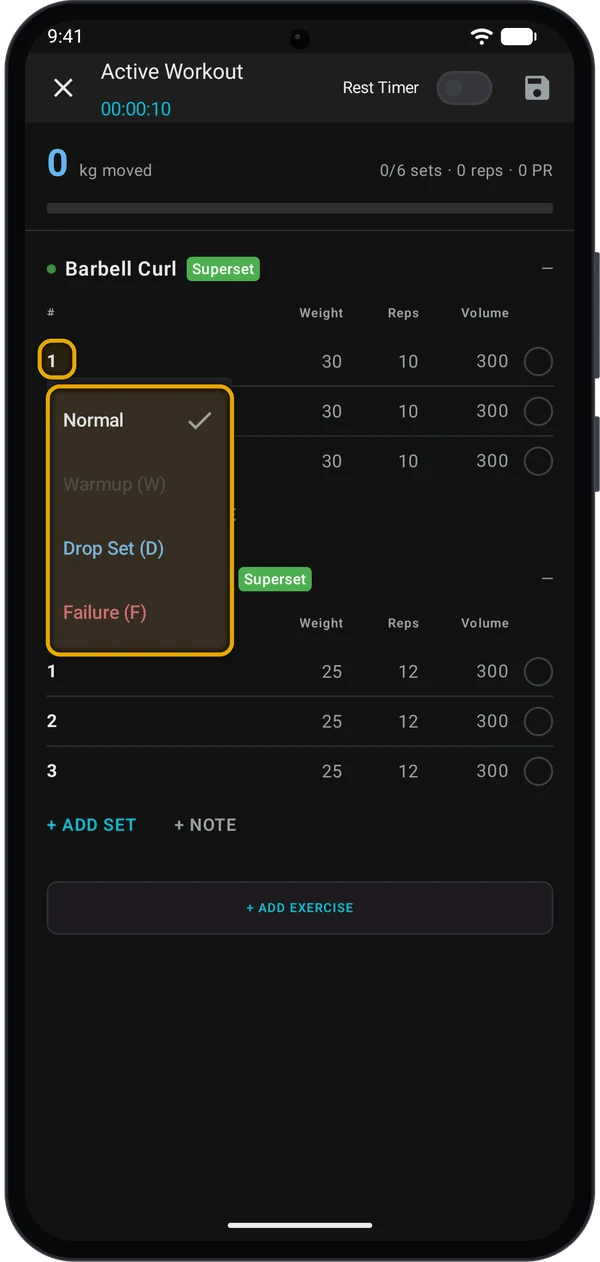
2
Choose a type
Tap Normal, Warmup (W), Drop Set (D) or Failure (F). The set number changes to the letter.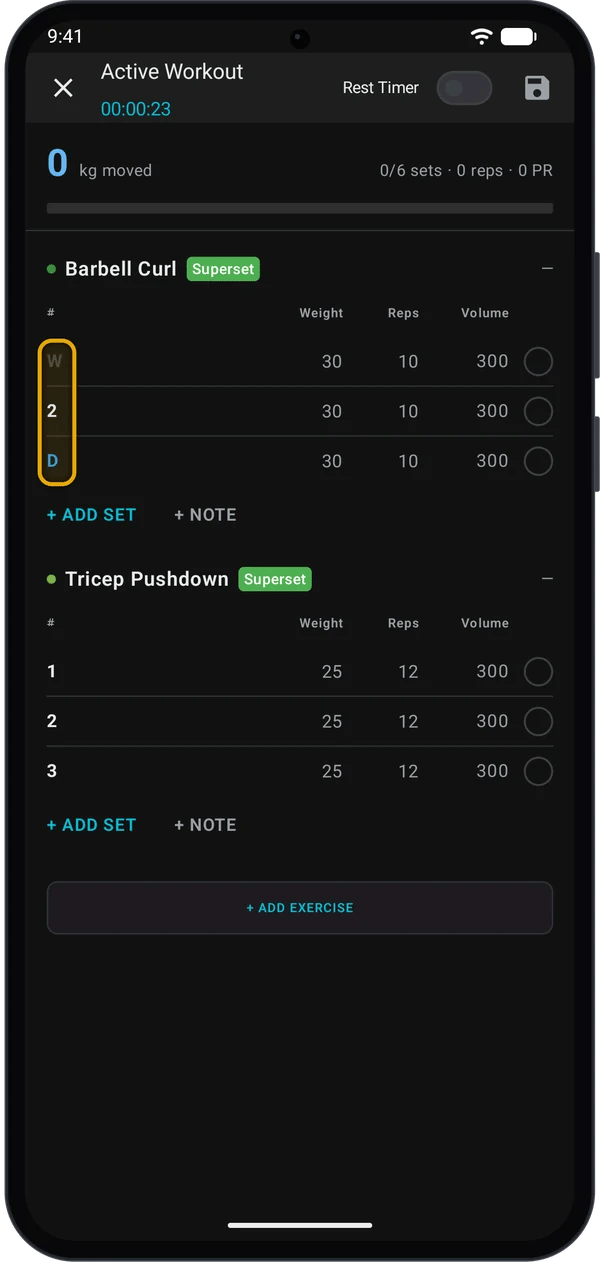
What each type changes
- Rest timer. The timer does not start when the next set in the exercise is a Drop Set (D). It starts after the drop set.
- Program progression. Kilo ignores W sets when it decides whether to raise your weight. D and F sets count. See How Auto-Progression Works.
- Estimated 1RM. The 1RM numbers on the Progress screens leave out D sets. In a workout’s set table, W and D sets show no 1RM estimate.
- Volume. All ticked sets count toward volume, whatever their type.
- Records. Kilo picks your best set for a record by weight, then reps. The set type does not matter.
- Watch. Set types in a routine show on your Garmin watch. See Log a workout on your Garmin watch.
On the watch you tap the set line to go through the types in order. On the phone you pick from a menu.
Supersets
In a superset, you do one set of each exercise in turn, then rest.Make a superset in an active workout
1
Start selecting
Long-press an exercise name, then tap Select for superset.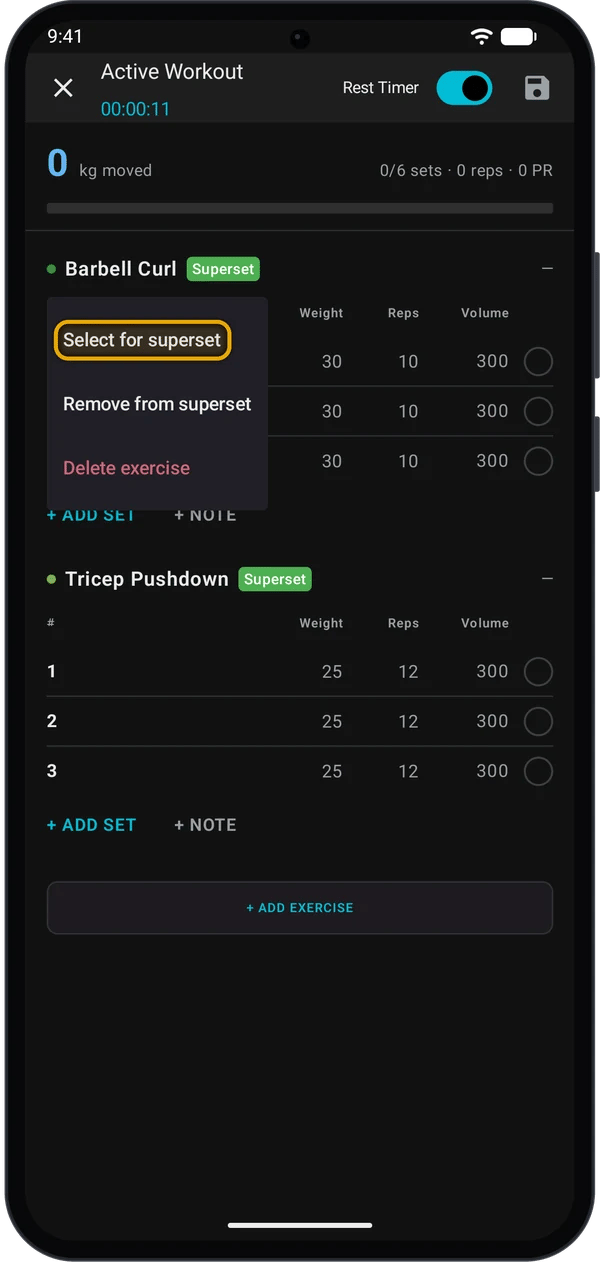
2
Select more exercises
Tap the other exercises you want in the group. You need at least 2.
3
Tap Create Superset
Tap Create Superset (2). The number is how many exercises you selected. Kilo moves the exercises next to each other and adds a Superset label.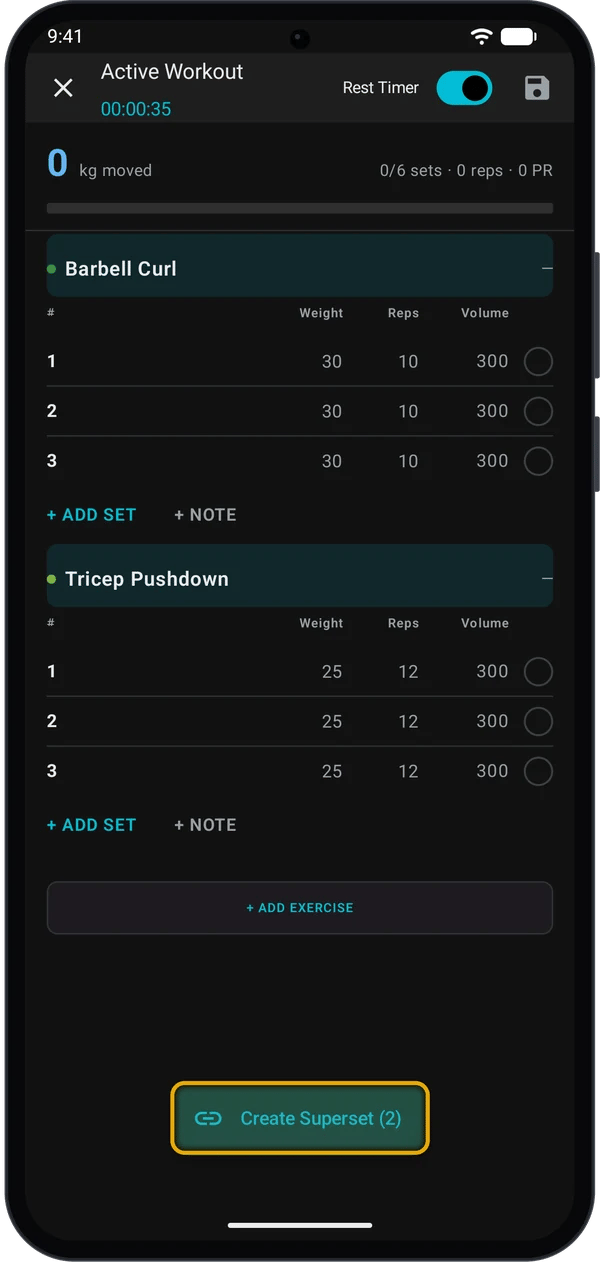
Make a superset in a routine
Open the routine and tap Edit Routine. The steps are the same: long-press an exercise, tap Select for superset, select the others, then tap Create Superset. Tap Save Routine when you finish.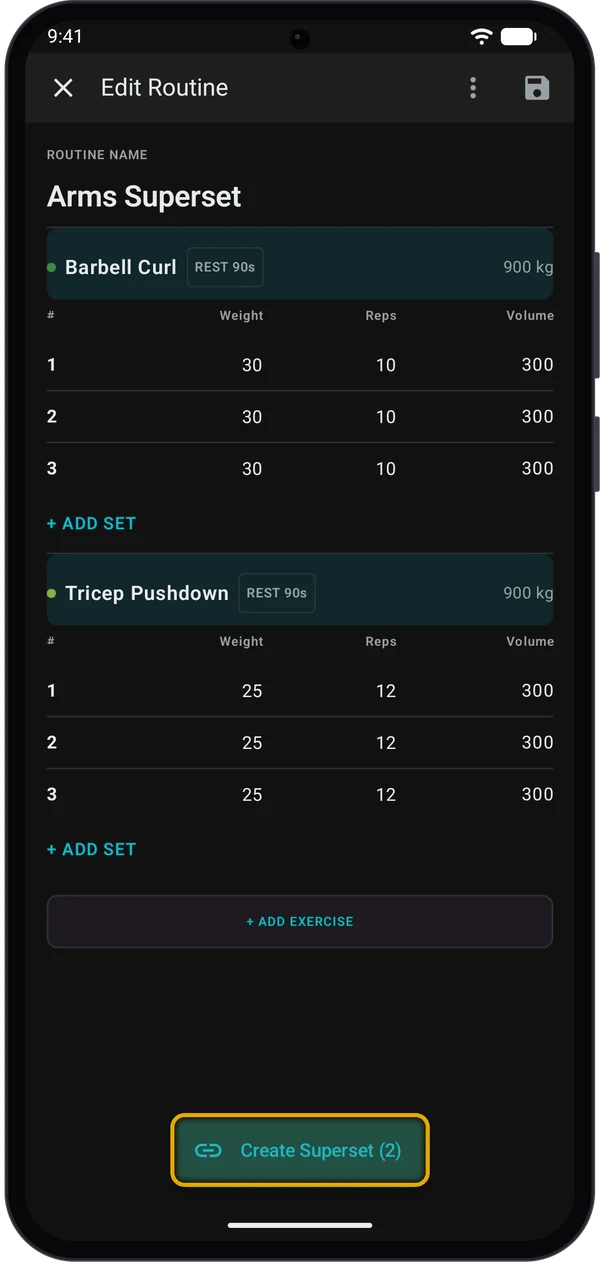
How a superset works during a workout
- After you tick a set, Kilo scrolls to the next exercise in the group.
- The rest timer starts only when you tick a set of the last exercise in the group.
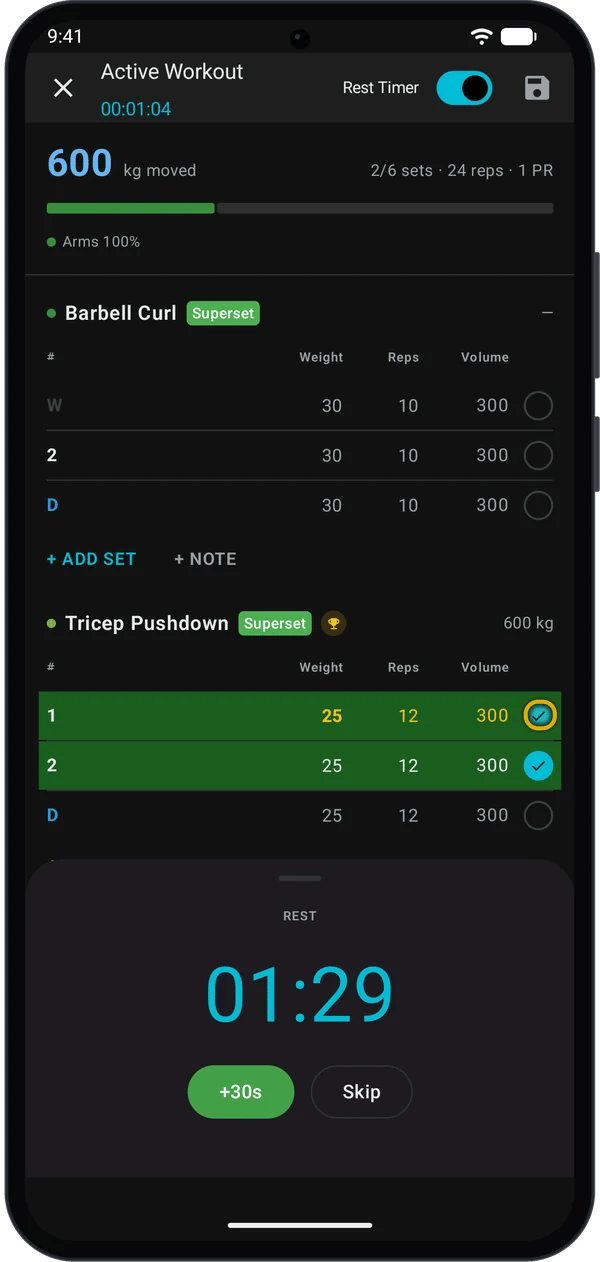
The Rest Timer switch must be on. The routine’s rest time (for example REST 90s) is for the watch. On the phone, Kilo uses Rest Timer Duration from Settings.
Phone and routine editor
Quick fixes
Nothing happens when I long-press
Nothing happens when I long-press
Long-press the exercise name row, not a set. Hold until the menu opens.
The rest timer does not start after a set
The rest timer does not start after a set
Check that the Rest Timer switch is on. The timer also waits when the next set is a drop set, or when the exercise is not the last in its superset.
The superset is gone
The superset is gone
Kilo removes a superset when only one exercise is left in it.
Next steps
Log workouts faster
Rest timer, Last hints and the plate calculator.
Log a workout on your Garmin watch
Set types and supersets on the watch.