Every program in Kilo can be customised before you activate it. If a program suggests Barbell Bench Press but you only have dumbbells, or you'd rather do Pull-Ups than Lat Pulldown, you can swap any exercise on the program review screen and choose whether your swap applies to a single training day or every day that exercise appears.
What swaps carry through to
- The active program schedule
- Pre-filled weights and rep targets on phone workouts
- Sessions sent to your Garmin watch
- Progression tracking (your swapped exercise builds its own progression history)
Before you start
- You must be on a program review screen: either Your Program (after Build My Program) or a Popular Methods detail screen.
- Swaps must be made before tapping Start Program. After activation, the program's exercise list is locked. To change an exercise once active, end the program and start a new one with the swap.
1) Open a program review screen
- Open Kilo and go to the Home tab.
- Tap Start a Training Program.
- Pick Build My Program and answer the questions, or tap Browse Popular Methods and select a method.
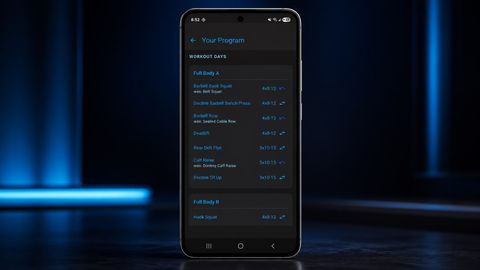
- You should now see the program's WORKOUT DAYS list with each exercise on its own row.
2) Swap an exercise
- Find the exercise you want to replace.
- Tap the swap icon (the left-right arrows) on the right side of the row.
- If the exercise only appears on one training day, the exercise picker opens immediately.
- If the exercise appears on multiple days, a Replace [Exercise] in how many days? dialog appears first. See the next step.
3) Choose the swap scope (multi-day exercises)
When the exercise appears on more than one workout day, Kilo asks how widely to apply your swap:
- Just this day: replace the exercise only on the day you tapped. Other days that include the same exercise stay unchanged.
- All days: replace every occurrence of that exercise across the whole program.
- Cancel: close the dialog without making a change.
Tip: pick All days when you're swapping for an equipment reason (e.g., you don't have a barbell). Pick Just this day when one specific session needs a different stimulus.
4) Pick the replacement exercise
- The exercise picker opens, pre-filtered to the same muscle group as the original.
- Tap any exercise in the list to select it.
- The picker closes and you return to the program review screen.
The swapped row now shows the new exercise name at the top and a was: [Original Exercise] caption underneath, in muted text.
Success: the exercise is swapped. The undo arrow has replaced the swap icon on that row.
5) Undo a swap
If you change your mind:
- Find the swapped row (it shows was: ... under the exercise name).
- Tap the undo icon on the right side.
- The original exercise is restored immediately. No confirmation needed.
You can swap and revert as many times as you like before activating the program.
6) Activate with your swaps
- When you're happy with all your swaps, choose your Follow Mode (Guided or Flexible).
- Tap Start Program at the bottom of the screen.
- Your swaps are saved with the program. Every scheduled session (on phone or watch) will use your replacement exercises.
Quick fixes
- Swap icon missing: You're already on an active program. Swaps must be made before tapping Start Program. End the program and start a new one if you need to change an exercise.
- Picker shows the wrong muscle group: The picker filters to the original exercise's primary muscle group. To pick from a different group, clear the filter at the top of the picker.
- My swap applied to too many days: You picked All days when you only meant one. Tap the undo icon on any row, then re-do the swap and choose Just this day.
- Watch is sending the original exercise: This is fixed in recent versions. Make sure you're on the latest Kilo and your watch app is updated. The swapped name should appear on the watch.
- Progression chart looks empty after a swap: Swapped exercises start their own progression history. The chart fills in as you complete sessions with the new exercise.