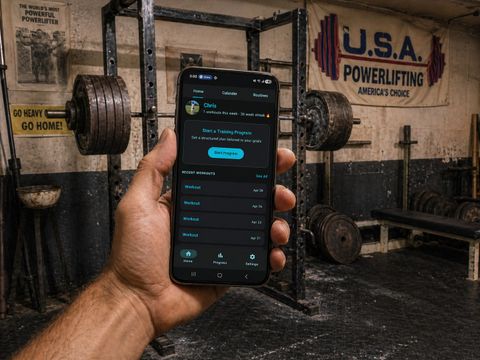
Pick a structured training program tailored to your goal, equipment, and schedule, then let Kilo guide each session and progress your weights for you. Choose a custom program built from your answers, or one of 8 hand-authored famous methods like 5x5, PPL, and PHUL.
Routines vs Programs
- Routines are simple workout templates: a fixed list of exercises, sets, and reps you start whenever you want.
- Programs are multi-week plans with scheduled training days, structured splits (Full Body, Upper/Lower, Push-Pull-Legs, Body Part), and automatic weight progression between sessions.
Use a Routine for casual sessions. Use a Program when you want a structured plan that tells you what to do next and how much weight to use.
1) Open the Program Flow
- Open Kilo and go to the Home tab.
- Find the Start a Training Program card.
- Tap it to open the Programs screen.
You'll see three options: Build My Program, Browse Popular Methods, and Past Programs (if you've followed one before).
2) Option A: Build My Program
This option matches you to a goal-fit program from a library of over 800 programs.
- On the Programs screen, tap Build My Program.
- Answer six short questions on the Find Your Program screen:
- Main goal: Build muscle, Get stronger, Lose weight & get lean, or General fitness.
- Experience level: Beginner (less than 6 months), Intermediate (6 months–2 years), or Advanced (2+ years).
- Days per week you can train.
- Equipment: Full gym, Dumbbells only, or Bodyweight / no equipment.
- Session length: ~30 min, ~45–60 min, or ~75–90 min.
- Split preference: Full body, Upper-Lower, Push-Pull-Legs, Body part split, or Not sure (you decide).
- Kilo opens the Your Program screen with a goal-matched program. Review the overview card and the WORKOUT DAYS list below it.
- Tap See other options to browse alternative variants of the same goal+split combo.
- (Optional) Swap any exercise that doesn't fit your equipment. See the Swap Exercises in a Program article.
Success: you've found a program that matches your goal, equipment, and schedule.
3) Option B: Browse Popular Methods
This option lets you pick from 8 well-known training programs without filling out the questionnaire.
- On the Programs screen, tap Browse Popular Methods.
- Scroll the list:
- 5x5: classic linear progression strength program
- Novice 3x5: beginner full-body strength
- 5x5 + Accessories: strength plus hypertrophy work
- PPL Hypertrophy: push/pull/legs split for muscle growth
- PHUL: power hypertrophy upper/lower
- PHAT: power hypertrophy adaptive training
- Bro Split: body-part split
- Full Body Strength: beginner-friendly strength template
- Tap a method to open its detail screen showing Duration, Frequency, Level, Goal, and Split.
- Review the workout days and exercises below.
Success: you've chosen a famous method that fits your style.
4) Choose Your Follow Mode
Whichever option you picked, the next decision is how Kilo should schedule your sessions.
Under HOW DO YOU WANT TO FOLLOW? pick one:
- Guided (recommended): Kilo tracks your progress day by day and tells you what's next. Best when you want the app to drive the schedule.
- Flexible: the program's days are saved as routines and you pick which one to do each session. Best if your week-to-week schedule is unpredictable.
You can change your mind later by ending the program and starting a new one.
5) Activate the Program
- With your follow mode selected, tap Start Program at the bottom of the screen.
- Kilo activates the program and returns you to the Home tab.
- The Home tab now shows an ACTIVE PROGRAM card with the program name and a Next Workout ▶ button.
Success: your program is live. Tap Next Workout to start your first session.
6) Run a Session
- On Home, tap Next Workout ▶ on the active program card.
- Choose Start on Phone or Start on Watch from the launch sheet.
- Each exercise is pre-filled with sets, reps, and a target weight from the progression engine.
- Log your sets as usual. After you save the workout, Kilo updates your progression so the next session is ready.
7) Manage Your Program
From the active program card on Home you can:
- Next Workout ▶: open the next scheduled session.
- Program Progress: see your current week, completed days, and per-exercise progression.
- Start New Program: open the Programs screen to switch programs.
- End Program: stop the program. Confirm in the dialog. Ended programs move to Past Programs with their progression history.
Quick fixes
- Empty Browse Methods list: Make sure you have the latest Kilo version from the Play Store.
- "No matching programs found": Widen your answers. For example, switch from Bodyweight to Full gym, increase your training days, or pick Not sure (you decide) for the split.
- Past Programs section missing: This section only appears once you've followed at least one program.
- Want different exercises: Swap any exercise on the Your Program screen before tapping Start Program. Your changes carry through to every session.
- Started the wrong program: Open the active program card on Home, tap End Program, confirm, and start a new one.