> ## Documentation Index
> Fetch the complete documentation index at: https://thekiloapp.com/help/llms.txt
> Use this file to discover all available pages before exploring further.
# Log Workouts Faster on Your Phone
> Use the rest timer, Last hints, auto-fill, the plate calculator and exercise notes to log sets with fewer taps.
These features in the **Active Workout** screen and in **Settings** cut down on typing and tapping while you train.
## Set your workout preferences
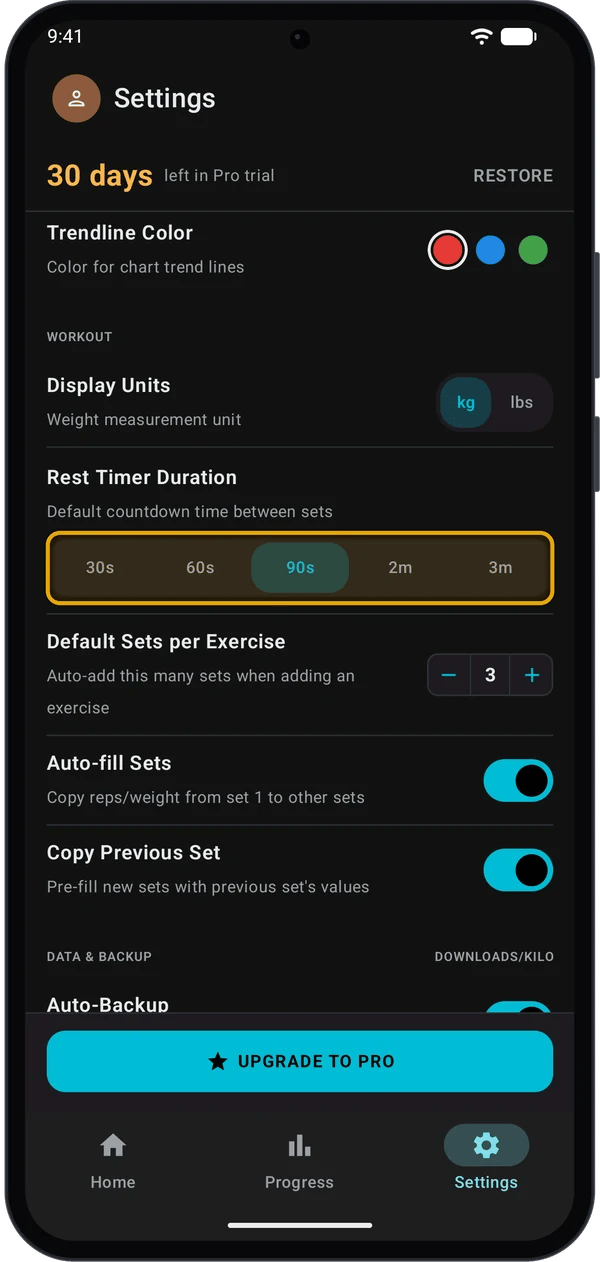
Go to **Settings** → **WORKOUT**.
| Setting | What it does |
| - | - |
| **Display Units** | Shows weights in **kg** or **lbs**. It also sets the bar and plates the plate calculator uses. |
| **Rest Timer Duration** | The rest countdown after each set: **30s**, **60s**, **90s**, **2m** or **3m**. |
| **Default Sets per Exercise** | How many sets Kilo adds when you add an exercise (1 to 5). |
| **Auto-fill Sets** | When you type the weight or reps for set 1, Kilo copies it to the other sets that are still empty. |
| **Copy Previous Set** | When you tap **+ ADD SET**, the new set gets the values of the set above it. |
## Use the rest timer
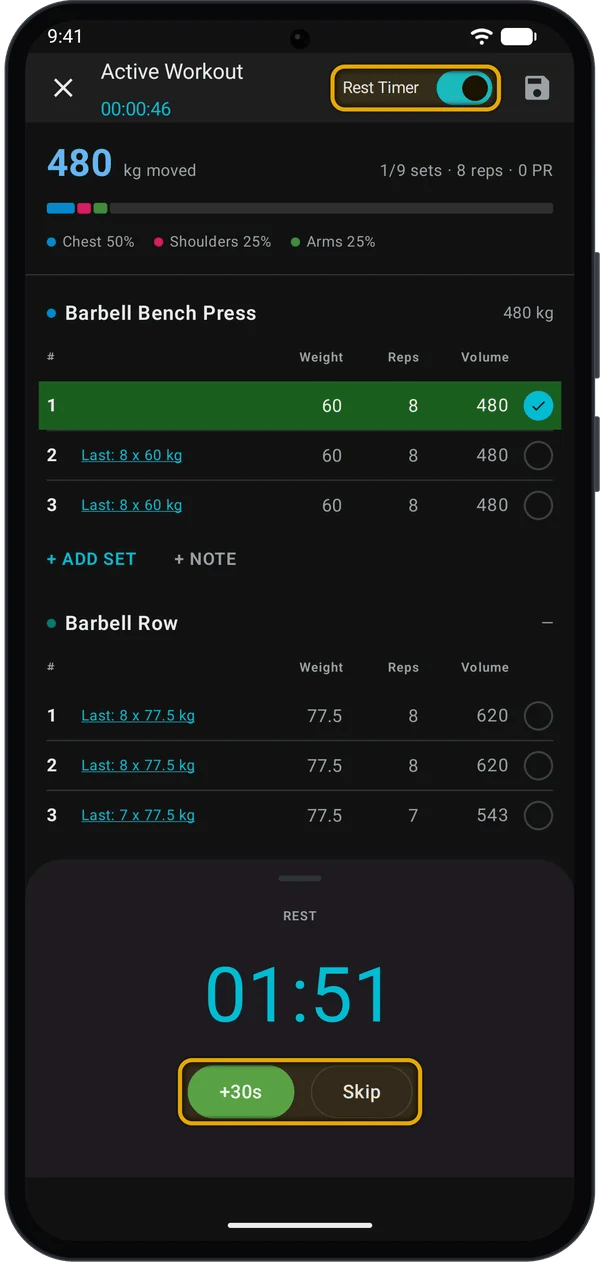
In the **Active Workout** top bar, turn on the **Rest Timer** switch. Kilo keeps this choice for your next workouts.
Tap the circle at the end of a set row. The **REST** countdown opens at the bottom of the screen.
* Tap **+30s** to add 30 seconds.
* Tap **Skip**, or press your phone's **Back** button, to close the timer.
The timer does not start:
* When the next set is a **Drop Set (D)**. It starts after the drop set.
* In a superset, until you tick a set of the last exercise in the superset.
* When you untick a set.
The **Rest Timer** in a routine's **Routine Settings** sets the rest time Kilo sends to your Garmin watch. Workouts on your phone use **Rest Timer Duration** from Settings.
## Copy last session's numbers
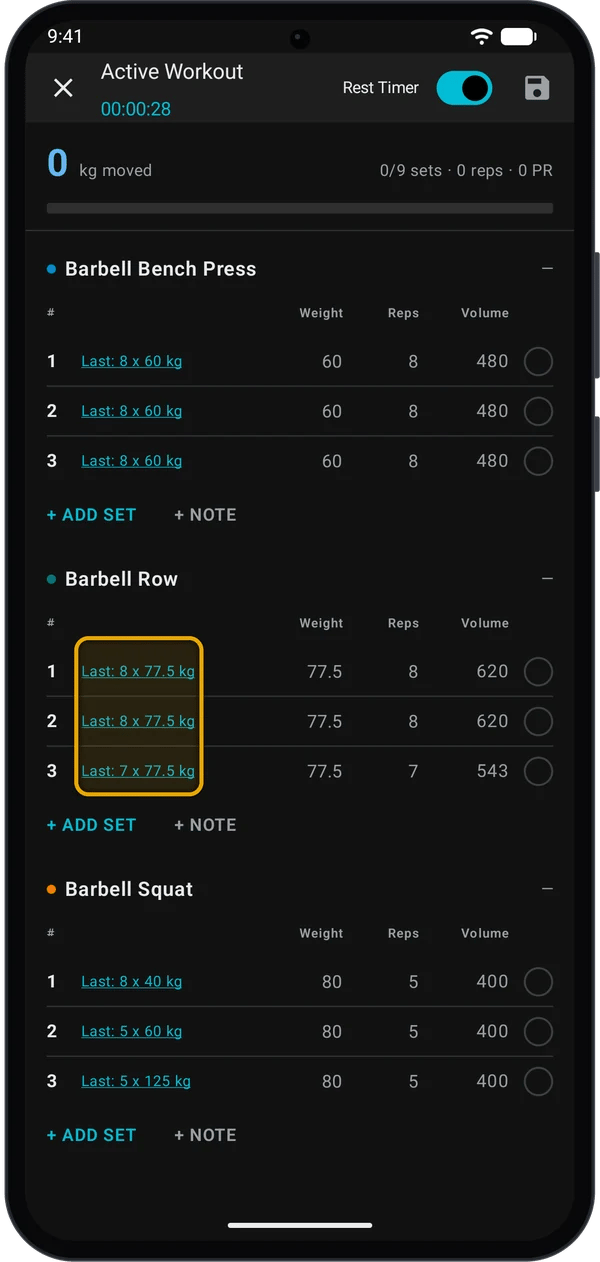
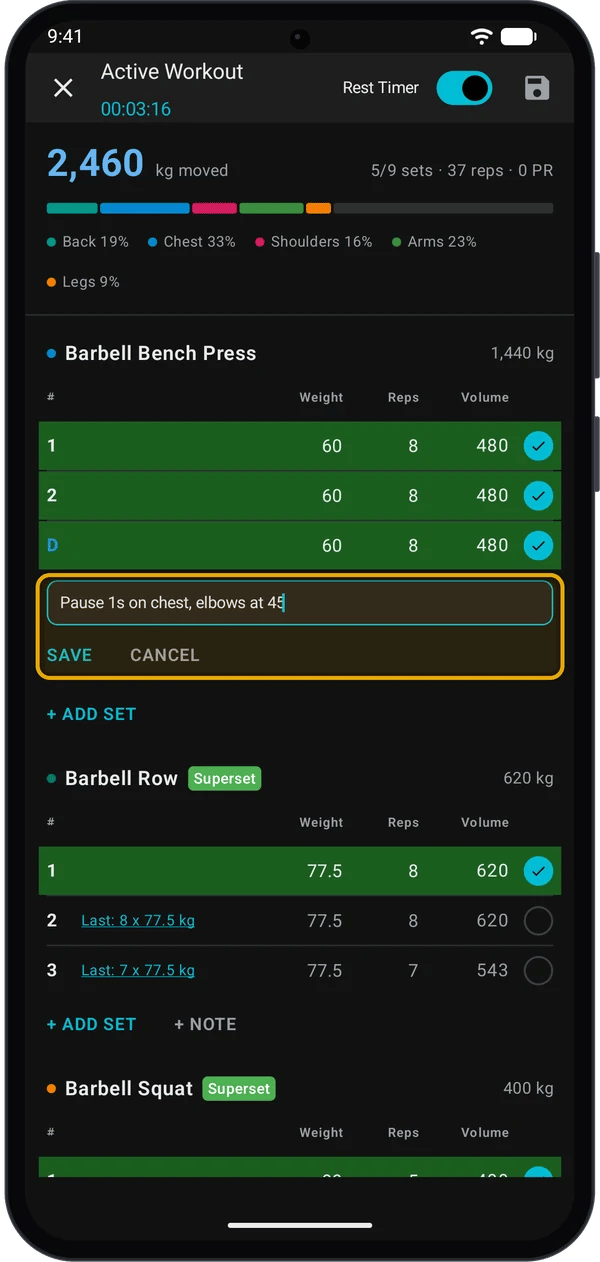
Each set that is not ticked shows a **Last:** hint, for example **Last: 8 x 77.5 kg**. It comes from the same set in the most recent finished workout with this exercise.
Tap any **Last:** hint. Kilo fills every unticked set of that exercise with last session's values, set by set.
This replaces the weight and reps you already entered in unticked sets.
## Load the bar with the plate calculator
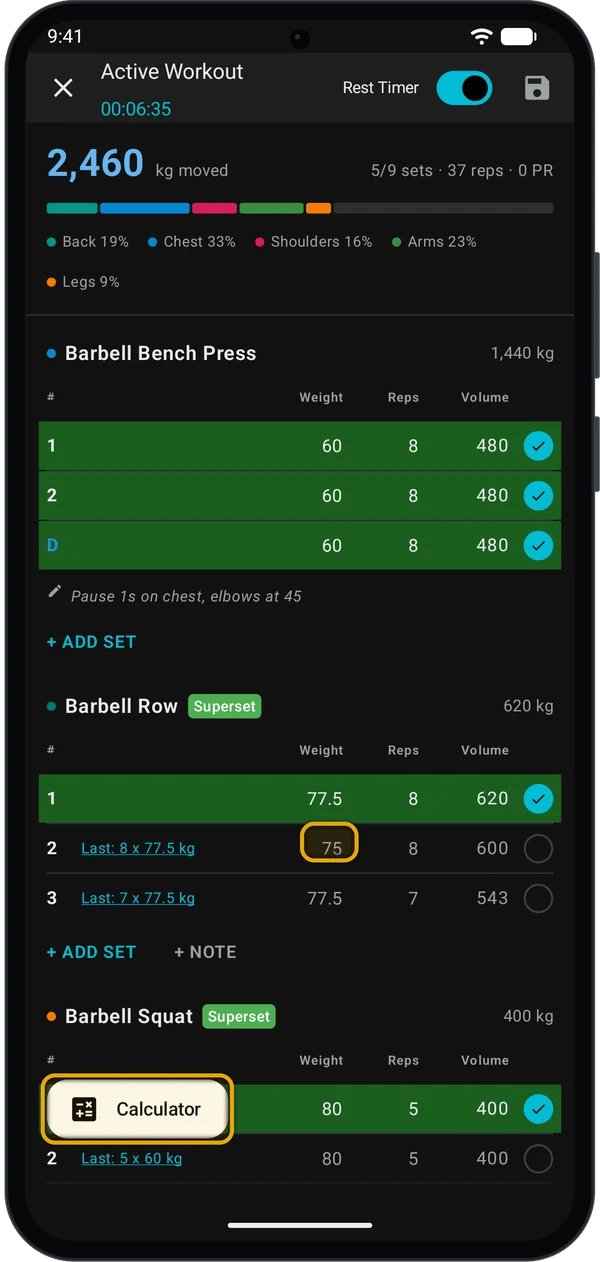
Tap a weight field. A **Calculator** button shows above the keyboard. Tap it.
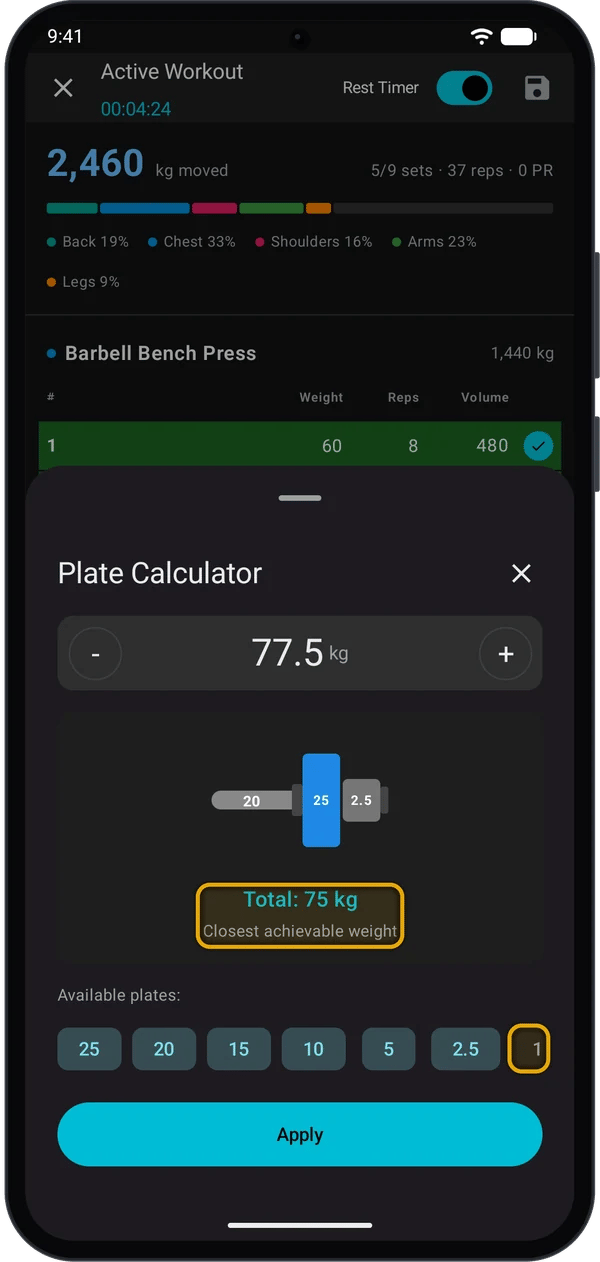
**Plate Calculator** opens with the weight from the field. It shows the bar and the plates for **one side**, heaviest first, and the **Total**.
* Tap **-** or **+** to change the target by 2.5 kg (5 lbs).
* Under **Available plates**, tap a plate size to turn it off if you do not have it. Tap it again to turn it back on. All sizes are on each time you open the calculator.
| Display Units | Bar | Plate sizes |
| - | - | - |
| **kg** | 20 kg | 25, 20, 15, 10, 5, 2.5, 1.25 |
| **lbs** | 45 lbs | 45, 35, 25, 10, 5, 2.5 |
If the plates you have cannot make the exact target, Kilo shows the closest weight under it and **Closest achievable weight**. Kilo uses at most 4 plates of one size and 10 plates on each side.
Tap **Apply**. The **Total** goes into the weight field.
## Add a note to an exercise
1. Under the exercise, tap **+ NOTE**.
2. Type a cue, for example your grip or tempo.
3. Tap **SAVE**.
The note stays with the exercise. Kilo shows it again the next time you do that exercise. To change it, tap the note. To delete it, tap the note, then **REMOVE**.
## If Kilo closes during a workout
While a workout runs, Android shows a **Workout in progress** notification. Tap it to open Kilo.
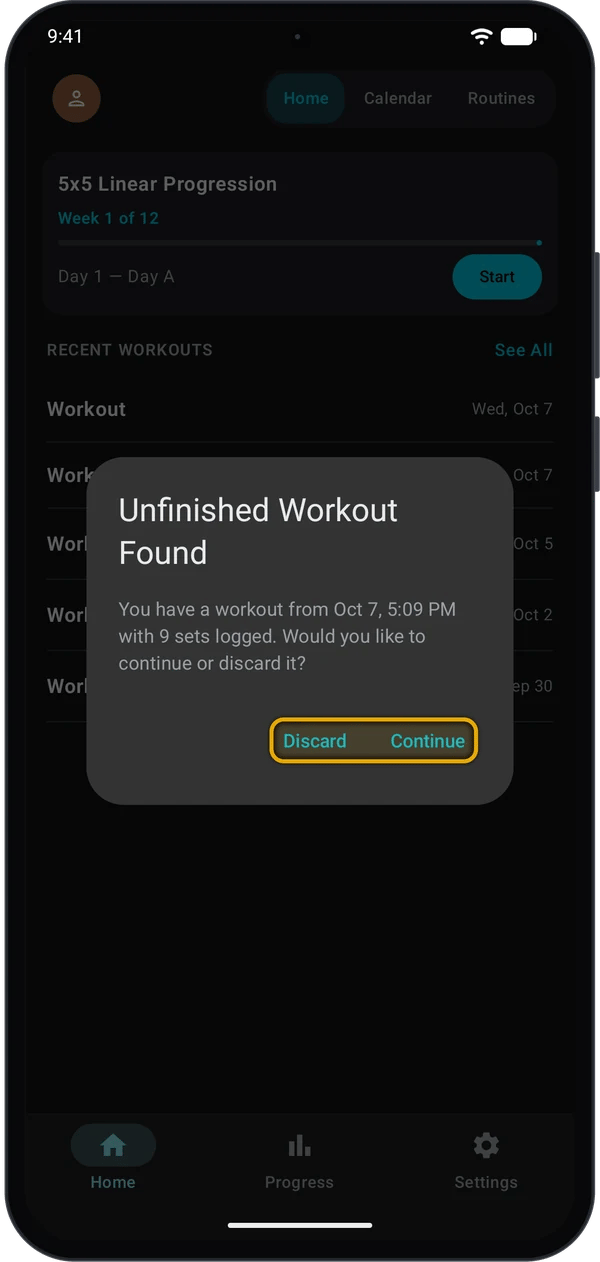
If Android closes Kilo during a workout, Kilo asks about it the next time you open the app. Tap **Continue** to go back to the workout, or **Discard** to delete it.
If a workout has had no activity for more than 24 hours, Kilo deletes it and does not ask.
## Quick fixes
Check that the **Rest Timer** switch in the top bar is on. The timer also waits when the next set is a drop set, or when the next exercise is in the same superset.
Phone workouts use **Settings** → **WORKOUT** → **Rest Timer Duration**. The routine's own rest time is for the watch.
Tap a weight field. The button shows only while the keyboard is open.
Check **Display Units** in **Settings**. **kg** uses a 20 kg bar; **lbs** uses a 45 lbs bar.
The target is the bar weight or less, so there are no plates to load. If it is less, Kilo shows **Weight is less than barbell**. Type the weight in the field instead.
The hint shows only on unticked sets, and only after you finish a workout that has this exercise.
## Next steps
See your lifts, records and weekly volume.
Let Kilo plan your sessions and raise your weights.
This documentation is built and hosted on [Mintlify](https://mintlify.com), a developer documentation platform.