> ## Documentation Index
> Fetch the complete documentation index at: https://thekiloapp.com/help/llms.txt
> Use this file to discover all available pages before exploring further.

# Logging a Workout on Your Garmin Watch

> Log sets, rest, and finish a Kilo workout from your Garmin watch.

Use this guide to run a full workout from your wrist: open exercises, enter reps and weight, rest between sets, and save. If your watch is not set up yet, start with [Getting Started with Kilo + Garmin](/help/getting-started).

## Watch controls

Kilo is built for touch. On watches with buttons, you can also use these:

| Control | What it does |
| - | - |
| **Tap** | Open an exercise or set, change a value, or tap an on-screen button. |
| **Swipe up or down** | Scroll a list. |
| **Up** / **Down** | Move through a list. |
| **Start** | Open the selected item in a list. |
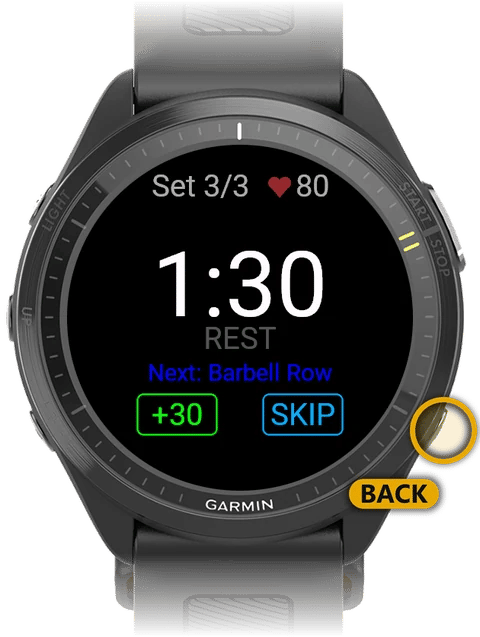
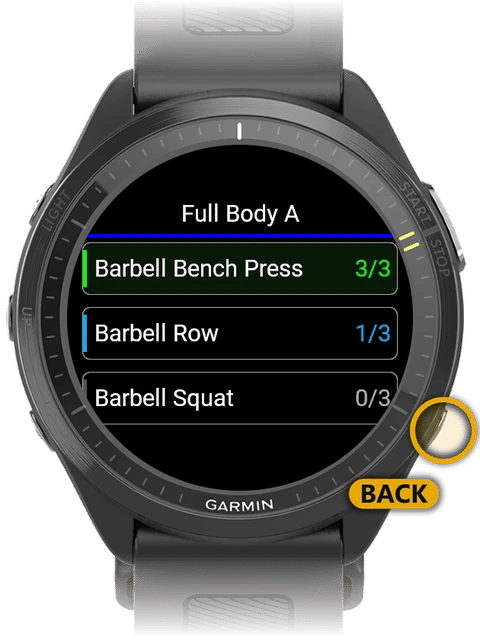
| **Back** | Go back one screen. On the rest timer, skip the rest. On the exercise list, end the workout. |

<Note>To enter reps and weight, use the touchscreen. On touchscreen watches, the lists do not highlight the item that **Up** and **Down** select, so tapping is easier.</Note>

The watch app has no settings of its own. Targets, rest times, and the weight unit come from your routine on the phone.

## 1. Start the workout

<Steps>
  <Step title="Open Kilo on your watch">
    Launch Kilo on your watch. It shows **Waiting for phone routine**.
  </Step>

  <Step title="Send the routine from your phone">
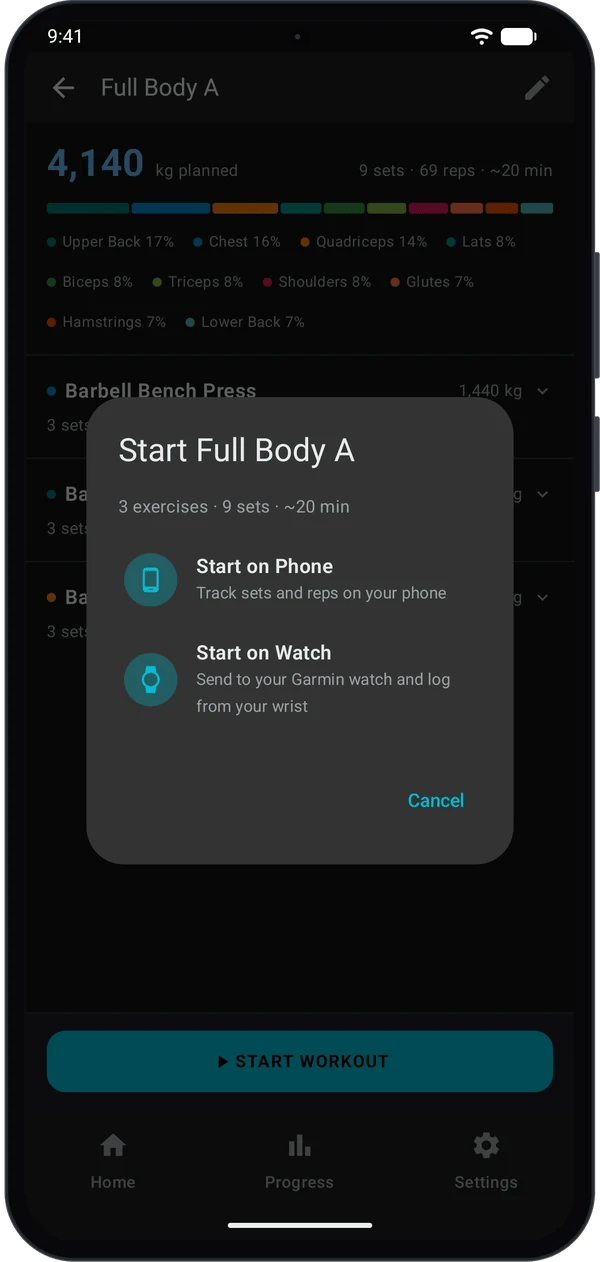
    On your phone, open the routine, tap **Start Workout**, then choose **Start on Watch**.

    <div className="kilo-shots">
      <img className="kilo-phone" src="https://mintcdn.com/kiloapp/Zx2NBVIt2D71ASCO/images/getting-started/phone-start-on-watch.webp?fit=max&auto=format&n=Zx2NBVIt2D71ASCO&q=85&s=5edf6032802befaa3d6a4fb31913e1b6" alt="Start dialog with Start on Phone and Start on Watch options" width="600" height="1262" data-path="images/getting-started/phone-start-on-watch.webp" />
    </div>

    <Check>The watch shows the exercise list and starts recording a Garmin **Strength Workout** activity.</Check>
  </Step>
</Steps>

## 2. Log your sets

<Steps>
  <Step title="Open an exercise and a set">
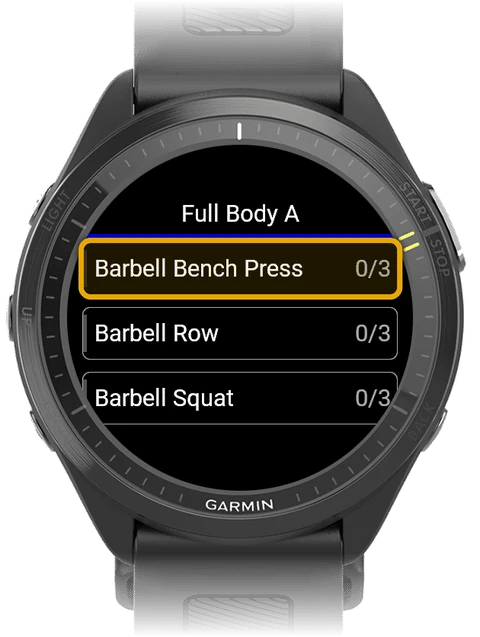
    1. Tap an exercise. The number on the right shows sets done out of sets planned.
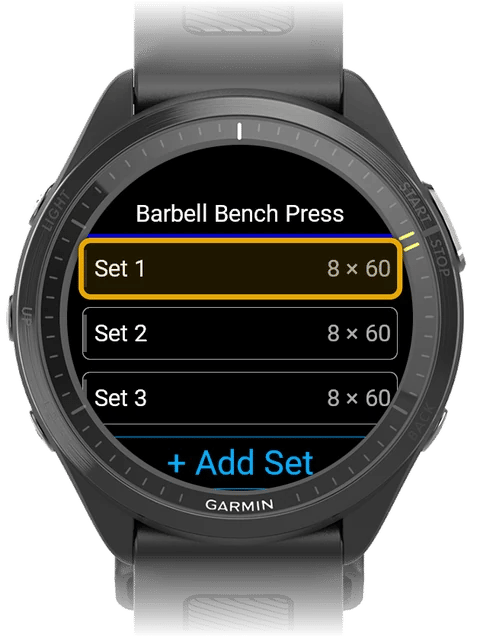
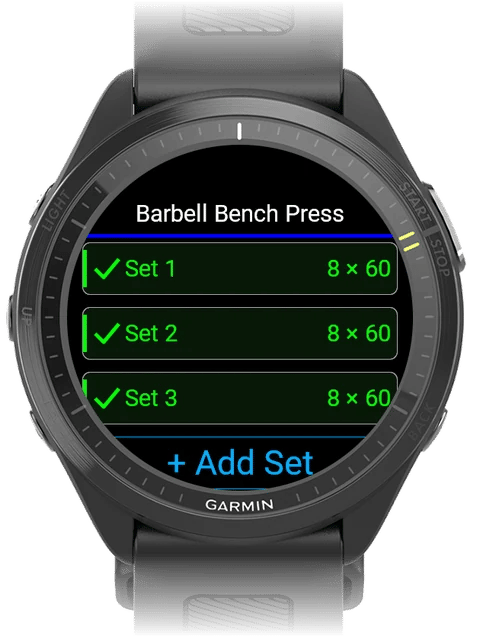
    2. Tap a set. Each row shows the planned reps × weight.

    <div className="kilo-shots">
      <img className="kilo-watch" src="https://mintcdn.com/kiloapp/Zx2NBVIt2D71ASCO/images/log-workout-on-garmin-watch/watch-tap-exercise.webp?fit=max&auto=format&n=Zx2NBVIt2D71ASCO&q=85&s=dfe6cce69f49e61385f32ef3e675ba25" alt="Exercise list with Barbell Bench Press highlighted as the tap target" width="480" height="637" data-path="images/log-workout-on-garmin-watch/watch-tap-exercise.webp" />

      <img className="kilo-watch" src="https://mintcdn.com/kiloapp/Zx2NBVIt2D71ASCO/images/log-workout-on-garmin-watch/watch-tap-set.webp?fit=max&auto=format&n=Zx2NBVIt2D71ASCO&q=85&s=9ce371277b2129debf99ea400651c652" alt="Set list for Barbell Bench Press with Set 1 highlighted as the tap target" width="480" height="637" data-path="images/log-workout-on-garmin-watch/watch-tap-set.webp" />
    </div>

    <Tip>To do an extra set, scroll down and tap **+ Add Set**.</Tip>
  </Step>

  <Step title="Enter reps and weight">
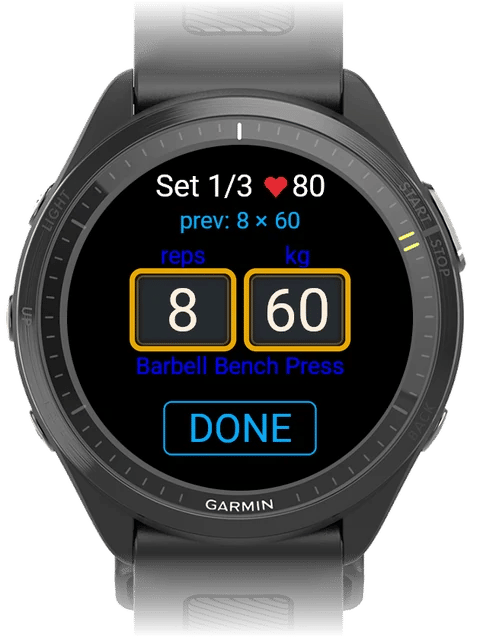
    The set screen shows the set number, your live heart rate, and the planned reps and weight.

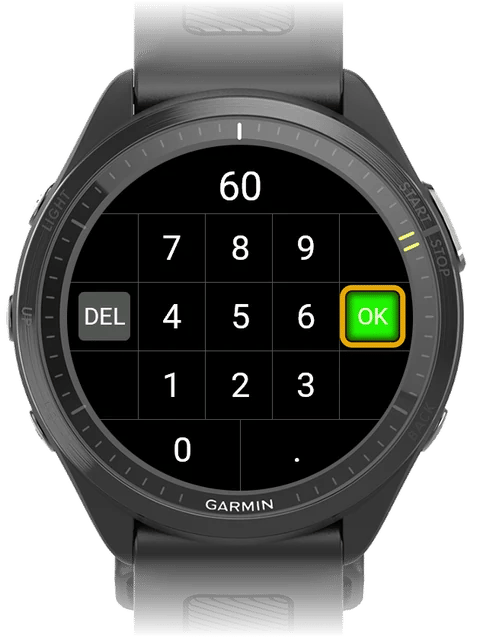
    1. Tap the reps box or the weight box. A keypad opens.
    2. Type the new value. The first key you press replaces the old value. Tap **DEL** to delete a digit.
    3. Tap **OK**. To close the keypad without a change, press **Back**.

    <div className="kilo-shots">
      <img className="kilo-watch" src="https://mintcdn.com/kiloapp/Zx2NBVIt2D71ASCO/images/log-workout-on-garmin-watch/watch-set-entry.webp?fit=max&auto=format&n=Zx2NBVIt2D71ASCO&q=85&s=11c302c6541b92d6813f79ea9967605e" alt="Set entry screen with the reps and weight boxes highlighted" width="480" height="637" data-path="images/log-workout-on-garmin-watch/watch-set-entry.webp" />

      <img className="kilo-watch" src="https://mintcdn.com/kiloapp/Zx2NBVIt2D71ASCO/images/log-workout-on-garmin-watch/watch-keypad.webp?fit=max&auto=format&n=Zx2NBVIt2D71ASCO&q=85&s=ac3cc0c165efe04aa2c1200759e16756" alt="Number keypad with the OK key highlighted" width="480" height="637" data-path="images/log-workout-on-garmin-watch/watch-keypad.webp" />
    </div>

    <Note>Weight rounds to the nearest 0.25. For example, 62.3 becomes 62.25. Reps are whole numbers from 0 to 99.</Note>
  </Step>

  <Step title="Save the set">
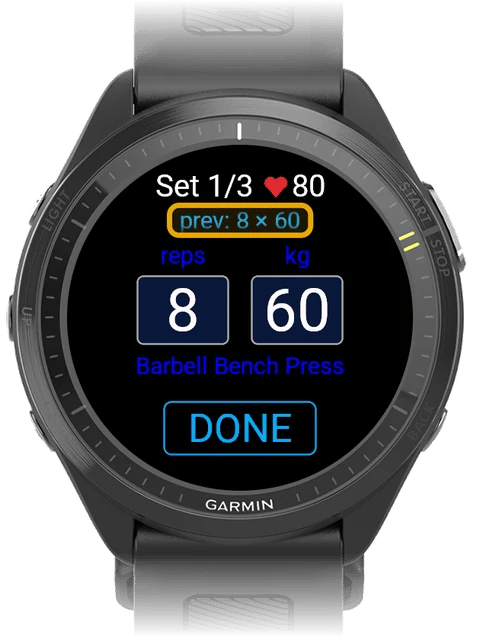
    1. Optional: if you see **prev:** in blue, tap it. Kilo copies the reps and weight from your last session.
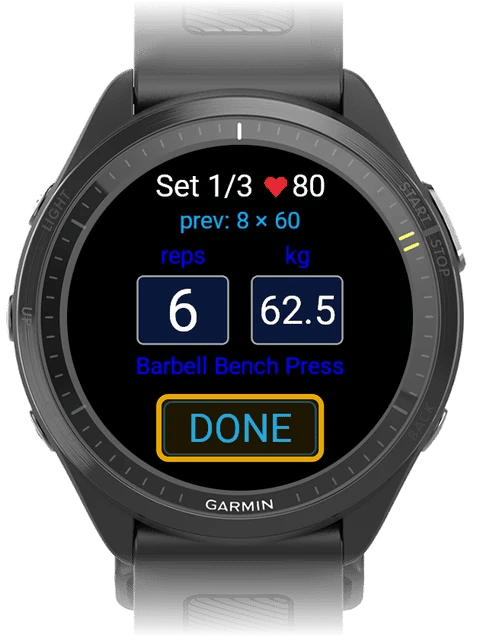
    2. Tap **DONE**.

    <div className="kilo-shots">
      <img className="kilo-watch" src="https://mintcdn.com/kiloapp/Zx2NBVIt2D71ASCO/images/log-workout-on-garmin-watch/watch-prev.webp?fit=max&auto=format&n=Zx2NBVIt2D71ASCO&q=85&s=9310112a8eaaa286af1ee5dc5a27306c" alt="Set entry screen with the blue prev: 8 × 60 line highlighted" width="480" height="637" data-path="images/log-workout-on-garmin-watch/watch-prev.webp" />

      <img className="kilo-watch" src="https://mintcdn.com/kiloapp/Zx2NBVIt2D71ASCO/images/log-workout-on-garmin-watch/watch-done.webp?fit=max&auto=format&n=Zx2NBVIt2D71ASCO&q=85&s=b2ea2f779db82e736db61aada4e15027" alt="Set entry screen with the DONE button highlighted" width="480" height="637" data-path="images/log-workout-on-garmin-watch/watch-done.webp" />
    </div>

    <Check>The rest timer starts.</Check>

    To leave the set without saving it, press **Back**.
  </Step>

  <Step title="Rest">
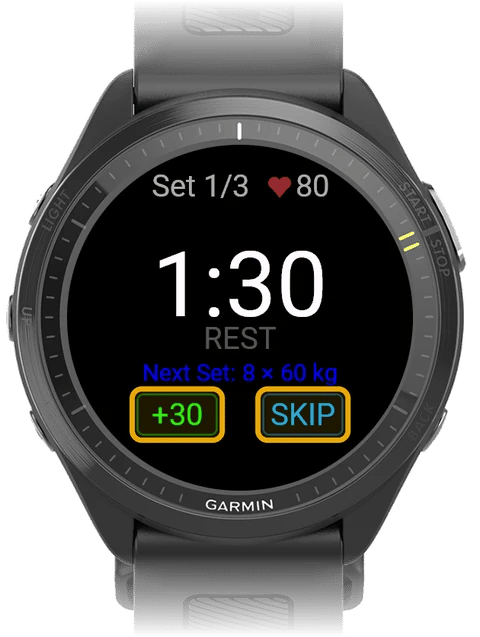
    The timer counts down from the rest time in your routine. Below it, Kilo shows what comes next, for example **Next Set: 8 × 60 kg** or **Next: Barbell Row**.

    * Tap **+30** to add 30 seconds.
    * Tap **SKIP**, or press **Back**, to end the rest early.

    The countdown turns yellow at 30 seconds and red at 10 seconds. At zero, the watch vibrates and opens your next set.

    <div className="kilo-shots">
      <img className="kilo-watch" src="https://mintcdn.com/kiloapp/Zx2NBVIt2D71ASCO/images/log-workout-on-garmin-watch/watch-rest-timer.webp?fit=max&auto=format&n=Zx2NBVIt2D71ASCO&q=85&s=a89e2548fb2bd5973cb5973ea63279d4" alt="Rest timer at 1:30 with the +30 and SKIP buttons highlighted" width="480" height="637" data-path="images/log-workout-on-garmin-watch/watch-rest-timer.webp" />

      <img className="kilo-watch" src="https://mintcdn.com/kiloapp/Zx2NBVIt2D71ASCO/images/log-workout-on-garmin-watch/watch-rest-back.webp?fit=max&auto=format&n=Zx2NBVIt2D71ASCO&q=85&s=85f49c841ea1d7f4197c03515c1f6e49" alt="Rest timer with the Back button on the watch highlighted" width="480" height="637" data-path="images/log-workout-on-garmin-watch/watch-rest-back.webp" />
    </div>
  </Step>

  <Step title="Move to the next exercise">
    Logged sets show a green tick with the reps and weight you logged. After the last set, the watch returns to the set list. Press **Back** to go to the exercise list, then tap the next exercise.

    In the exercise list, the count is grey before you start, blue while in progress, and green when all sets are done.

    <div className="kilo-shots">
      <img className="kilo-watch" src="https://mintcdn.com/kiloapp/Zx2NBVIt2D71ASCO/images/log-workout-on-garmin-watch/watch-sets-done.webp?fit=max&auto=format&n=Zx2NBVIt2D71ASCO&q=85&s=a5848bded7ccaa6bcb20e9214ffef5c8" alt="Set list with all three bench press sets ticked in green" width="480" height="637" data-path="images/log-workout-on-garmin-watch/watch-sets-done.webp" />
    </div>

    <Tip>To fix a logged set, tap it, change the values, and tap **DONE**. The rest timer does not start for an edit.</Tip>
  </Step>
</Steps>

## Mark warm-up, drop, and failure sets

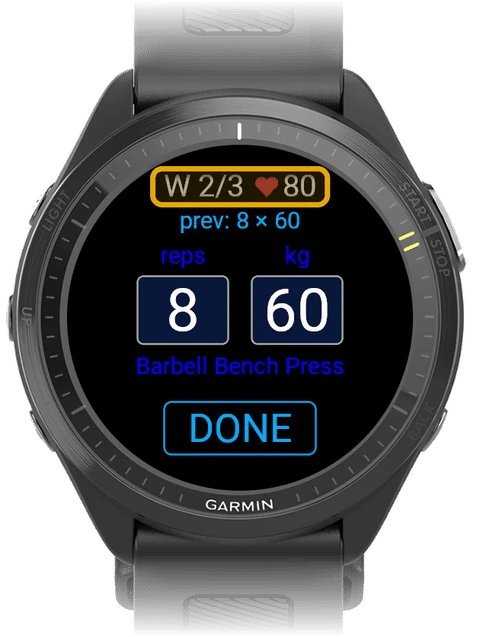
On the set screen, tap the top line (for example **Set 2/3**) to change the set type. Each tap moves to the next type:

**Set** (normal) → **W** (warm-up) → **D** (drop set) → **F** (failure) → **Set**
<div className="kilo-shots">
  <img className="kilo-watch" src="https://mintcdn.com/kiloapp/Zx2NBVIt2D71ASCO/images/log-workout-on-garmin-watch/watch-set-type.webp?fit=max&auto=format&n=Zx2NBVIt2D71ASCO&q=85&s=9c8992e76ed343c967e391c3a9d4177e" alt="Set entry screen with the W 2/3 set type line highlighted" width="480" height="637" data-path="images/log-workout-on-garmin-watch/watch-set-type.webp" />
</div>

Set types that you add to the routine on your phone show on the watch automatically. The rest timer does not start when the next set is a drop set.

## Supersets

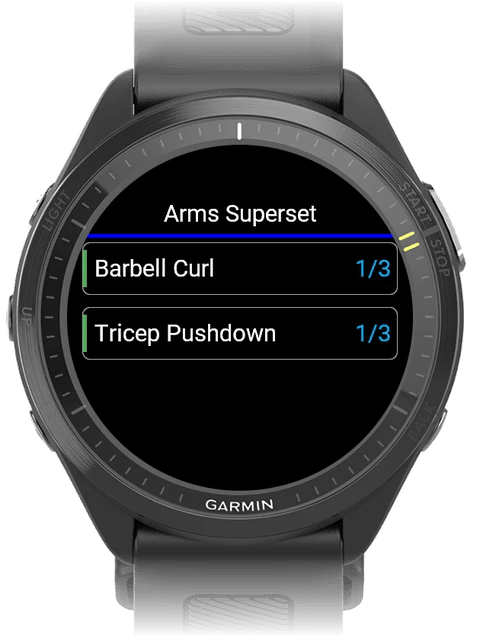
Create supersets in the phone routine editor: long-press an exercise, tap **Select for superset**, select the other exercises, then tap **Create Superset**. On the watch, exercises in a superset have a coloured bar in the same colour as on the phone.

* When you save a set, the watch opens the next exercise in the superset. There is no rest between them.
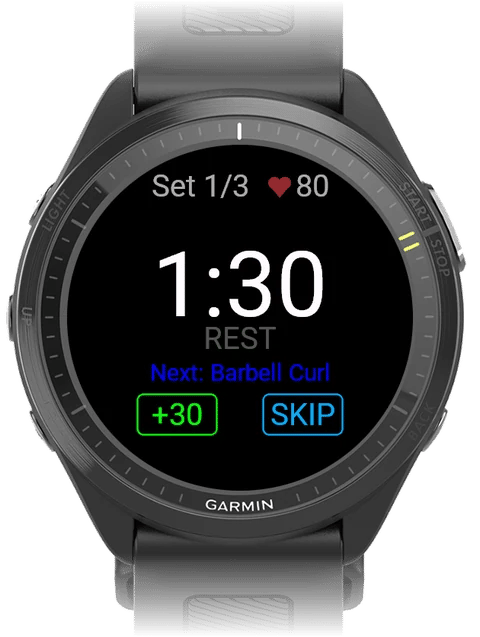
* After the last exercise in the superset, the rest timer starts and shows the first exercise as **Next**.
* After the rest, the watch opens the first exercise again. Tap the next set to continue.
<div className="kilo-shots">
  <img className="kilo-watch" src="https://mintcdn.com/kiloapp/Zx2NBVIt2D71ASCO/images/log-workout-on-garmin-watch/watch-superset-list.webp?fit=max&auto=format&n=Zx2NBVIt2D71ASCO&q=85&s=3c0656734df4a40ebb581836694ce1a6" alt="Exercise list with Barbell Curl and Tricep Pushdown marked as a superset" width="480" height="637" data-path="images/log-workout-on-garmin-watch/watch-superset-list.webp" />

  <img className="kilo-watch" src="https://mintcdn.com/kiloapp/Zx2NBVIt2D71ASCO/images/log-workout-on-garmin-watch/watch-superset-rest.webp?fit=max&auto=format&n=Zx2NBVIt2D71ASCO&q=85&s=a3ea1cc45083442e42bf6344463ef147" alt="Rest timer after the superset showing Next: Barbell Curl" width="480" height="637" data-path="images/log-workout-on-garmin-watch/watch-superset-rest.webp" />
</div>

## Program workouts

When you start a program session on the watch, the line under the set number shows your program target instead of **prev:**. This line is for information only. You cannot tap it. See [How Auto-Progression Works](/help/how-auto-progression-works).

## 3. Finish the workout

<Steps>
  <Step title="End the workout">
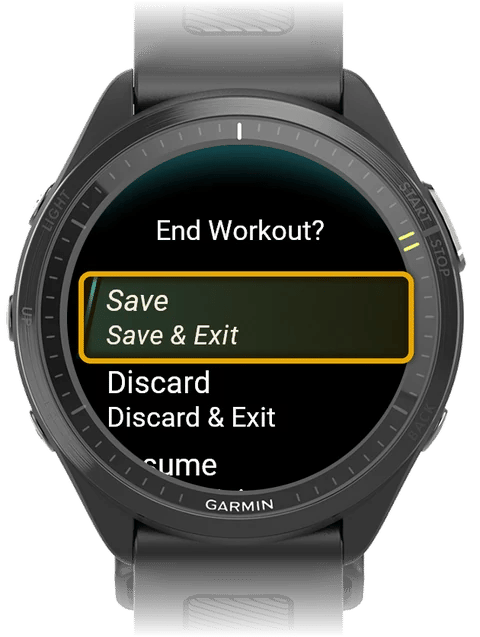
    Go to the exercise list and press **Back**.

    <div className="kilo-shots">
      <img className="kilo-watch" src="https://mintcdn.com/kiloapp/Zx2NBVIt2D71ASCO/images/log-workout-on-garmin-watch/watch-list-back.webp?fit=max&auto=format&n=Zx2NBVIt2D71ASCO&q=85&s=7744572bc39e646a4c16120c86082ccb" alt="Exercise list with the Back button on the watch highlighted" width="480" height="637" data-path="images/log-workout-on-garmin-watch/watch-list-back.webp" />

      <img className="kilo-watch" src="https://mintcdn.com/kiloapp/Zx2NBVIt2D71ASCO/images/log-workout-on-garmin-watch/watch-end-save.webp?fit=max&auto=format&n=Zx2NBVIt2D71ASCO&q=85&s=f7963e2ac6175e910d9ee7d67a920170" alt="End Workout? menu with Save highlighted" width="480" height="637" data-path="images/log-workout-on-garmin-watch/watch-end-save.webp" />
    </div>
  </Step>

  <Step title="Choose Save, Discard, or Resume">
    | Option | What it does |
    | - | - |
    | **Save** | Sends any sets the phone has not received yet, then saves the workout and the Strength Workout activity. |
    | **Discard** | Deletes the workout and the activity. |
    | **Resume** | Goes back to your workout. |
  </Step>

  <Step title="Check your summary">
    After you save, the watch shows a summary: total volume, exercises, sets, time, average heart rate, and calories. Press **Back** to close it. If you logged no sets, the watch skips the summary.

    <Check>The workout is in Kilo on your phone.</Check>
  </Step>
</Steps>

## Quick fixes

<AccordionGroup>
  <Accordion title="The watch ignores a new routine">
    A workout is already running on the watch. Save or discard it, then send the routine again.
  </Accordion>

  <Accordion title="No prev: line on the set screen">
    It shows only when you have logged that exercise in Kilo before. Program workouts show a target instead.
  </Accordion>

  <Accordion title="The rest timer did not start">
    This is expected after you edit a logged set, before a drop set, and between exercises in a superset. To change rest times, open the routine editor on your phone and tap the **REST** chip.
  </Accordion>

  <Accordion title="Wrong weight unit">
    On your phone, go to **Settings** → **WORKOUT** → **Display Units**. Then send the routine to your watch again.
  </Accordion>

  <Accordion title="No heart rate on the set screen">
    The heart rate shows only when the watch has a reading. Wear the watch snugly above your wrist bone.
  </Accordion>

  <Accordion title="Waiting for phone or Sync Incomplete when you save">
    Keep your phone nearby with Garmin Connect running, then tap **Retry**. If it still fails, tap **Save**. Unsent sets stay on the watch.
  </Accordion>
</AccordionGroup>

## Next steps

<CardGroup cols={2}>
  <Card title="Build a training program" icon="dumbbell" href="/help/build-match-follow-program">
    Follow a multi-week plan and log each session from your watch.
  </Card>

  <Card title="How auto-progression works" icon="chart-line" href="/help/how-auto-progression-works">
    See how Kilo picks your targets for the next session.
  </Card>
</CardGroup>


This documentation is built and hosted on [Mintlify](https://mintlify.com), a developer documentation platform.