> ## Documentation Index
> Fetch the complete documentation index at: https://thekiloapp.com/help/llms.txt
> Use this file to discover all available pages before exploring further.
# Frequently asked questions
> Short answers about themes, units, custom exercises, your profile, privacy, help and feedback, and the watch app update prompt, with links to the full guides.
Short answers to common questions. Where a full guide exists, each answer links to it.
## Settings and personal details
### Themes
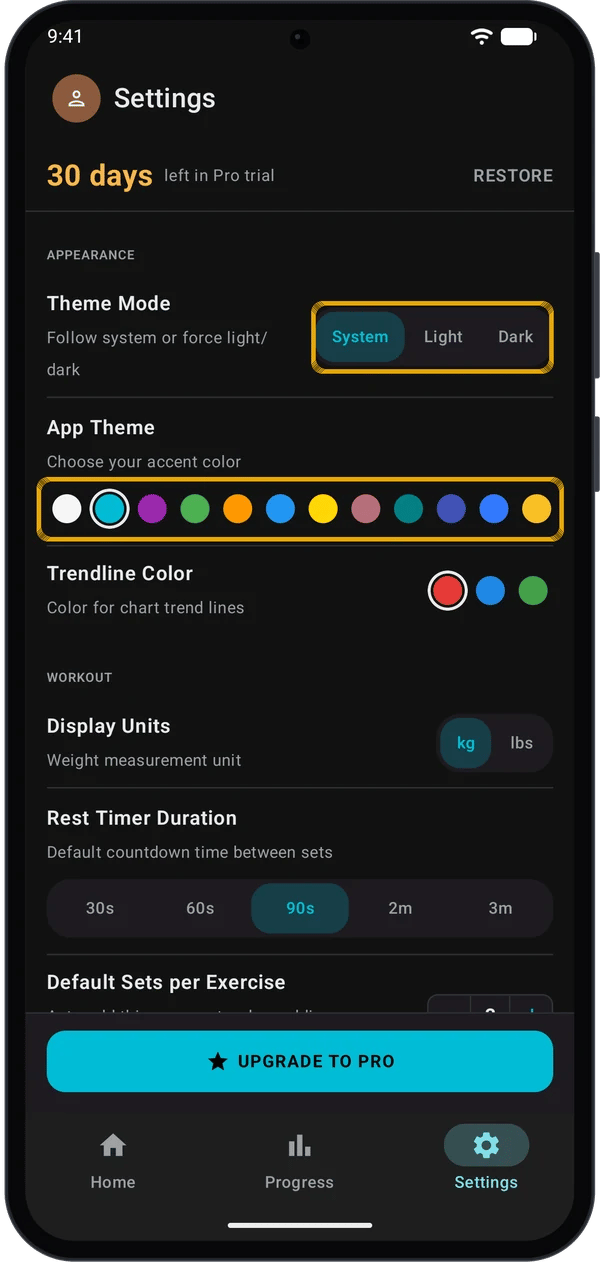
1. Go to **Settings** → **APPEARANCE**.
2. Under **Theme Mode**, tap **System**, **Light** or **Dark**. **System** follows your phone.
3. Under **App Theme**, tap a colour dot. The change applies at once.
**App Theme** has one set of colours for dark mode and another for light mode. Kilo remembers a choice for each set.
| Mode | Colours |
| - | - |
| Dark | White, Cyan, Purple, Green, Orange, Blue, Yellow, Rose Gold, Teal Mint, Deep Space, Bluey, Def |
| Light | Sky Blue, Teal Mint, Forest Green, Coral Orange, Violet Pulse, Dark Light |
The set you see depends on the mode that is active now. With **System**, that is your phone's mode.
In **Settings** → **APPEARANCE**, tap **Red**, **Blue** or **Green** under **Trendline Color**. Trendlines need Pro. See [Track Your Progress](/help/track-your-progress) and [Kilo Free vs Pro](/help/kilo-free-vs-pro).
### Units
Go to **Settings** → **WORKOUT** and tap **kg** or **lbs** next to **Display Units**.
Yes. Kilo keeps every weight in kg and only changes how it shows them. Your history is not changed. For example, a 77.5 kg set shows as 170.75 lbs, and 77.5 kg again when you switch back. Kilo rounds shown weights to the nearest 0.25.
Weights you type are read in the unit you have selected.
The plate calculator bar and plates, program weight steps and the weight unit on your watch. See [Log Workouts Faster](/help/log-workouts-faster) and [How Auto-Progression Works](/help/how-auto-progression-works). Send a routine to your watch again after you switch.
No. Your profile weight has its own **kg** and **lbs** buttons. See [Profile](#profile).
### Custom exercises and favourites
Use either route:
* In the exercise picker, tap **CREATE** at the top right.
* Go to **Progress** → **Exercises**, scroll to the end of the list and tap **+ CREATE EXERCISE**.
Then:
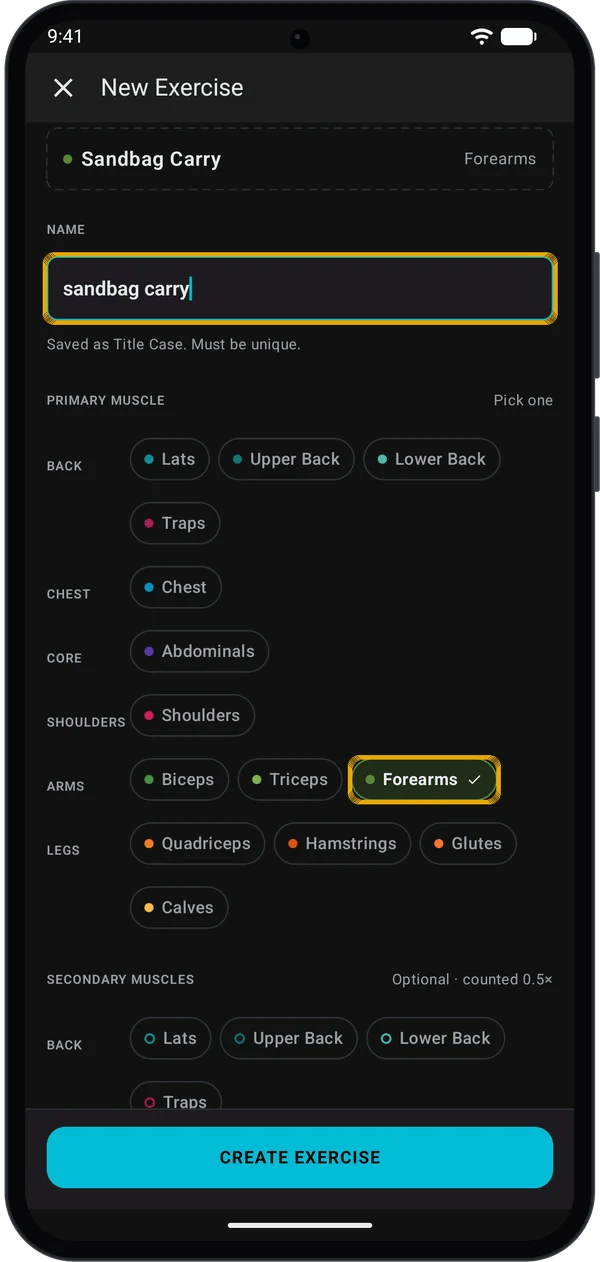
1. Type a name.
2. Under **PRIMARY MUSCLE**, pick one muscle.
3. Optional: under **SECONDARY MUSCLES**, pick more muscles.
4. Tap **CREATE EXERCISE**.
* Kilo saves the name in Title Case, for example **Sandbag Carry**.
* The name must be unique. Capital letters do not count, so **landmine press** clashes with **Landmine Press**. Kilo then shows **An exercise with this name already exists**.
* You must pick one primary muscle. **CREATE EXERCISE** stays grey until you do.
* Secondary muscles are optional. Each one counts for half the volume (**0.5×**). See [Track Your Progress](/help/track-your-progress#workout-volume-by-muscle).
1. In **Progress** → **Exercises** or in the exercise picker, long-press the exercise.
2. Tap **Edit exercise** or **Delete**.
In the editor, **SAVE CHANGES** saves your edit. **DELETE EXERCISE** deletes it.
Renaming an exercise updates all past workout history. Kilo also renames it in your routines.
Kilo keeps them. They still show in your workout history. The exercise leaves your exercise list and **Progress**. Its volume moves to **Other** in the muscle-group charts.
Long-press the exercise in **Progress** or in the exercise picker, then tap **Add to favorites**. A small star shows after the name. Tap **Favorites** in the muscle chips to show only favourites. Favourites also move to the top of the list. To remove one, long-press it and tap **Remove from favorites**.
### Profile
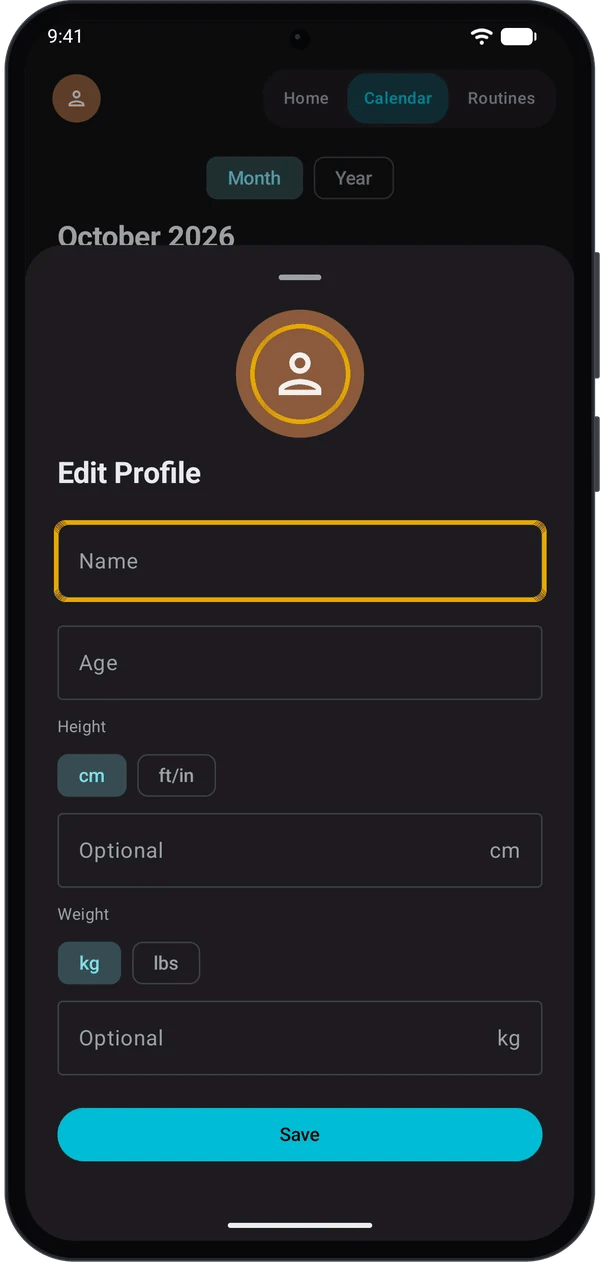
1. Tap the round avatar at the top left. It is on **Home**, **Progress** and **Settings**.
2. Tap the avatar in the sheet to pick a photo. **Remove photo** shows once you have one.
3. Enter your **Name**. The other fields are optional.
4. For **Height**, tap **cm** or **ft/in**. For **Weight**, tap **kg** or **lbs**.
5. Tap **Save**.
Your name and photo show in the avatar. Without a photo, the avatar shows the initials of your name. Kilo does not use your age, height or weight in any chart or calculation. They are only saved on your phone.
No. Set them again on a new phone. See [Back Up and Restore Your Kilo Data](/help/backup-and-restore).
### Privacy
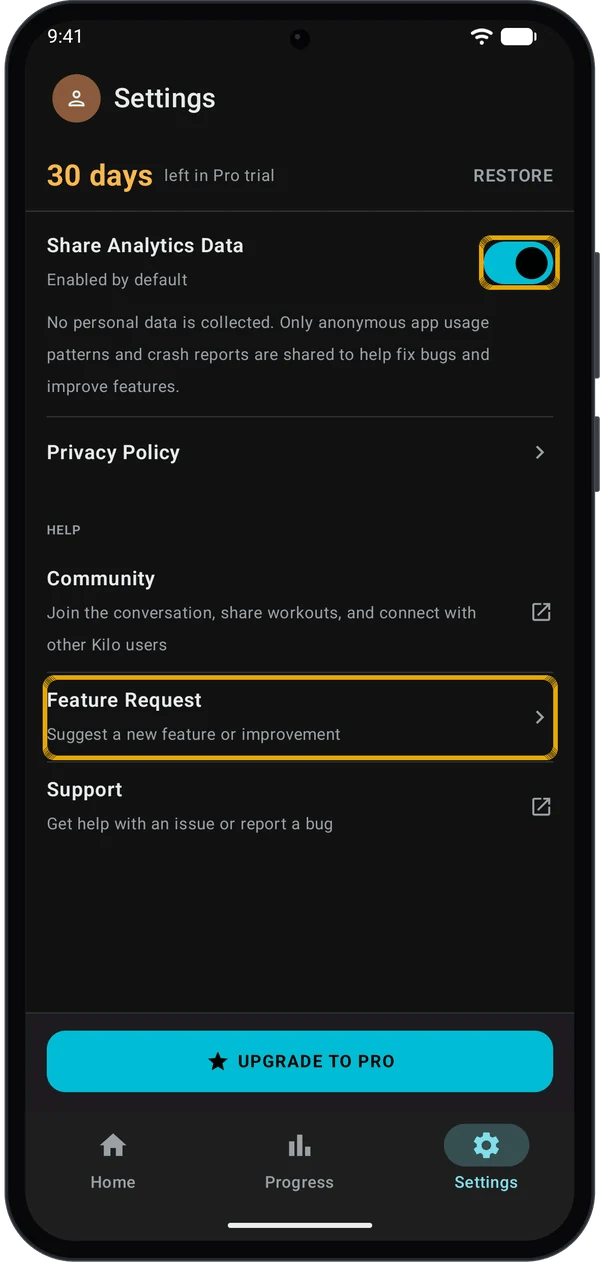
It is in **Settings** → **PRIVACY**. When it is on, Kilo shares anonymous app usage patterns and crash reports. Kilo says it collects no personal data. Turn the switch off to stop sharing. The change applies at once.
It depends on the region set on your phone. In the EU, the UK, Norway, Iceland, Liechtenstein and Switzerland, it is **off** until you turn it on. The line under the switch says **Disabled by default in your region**. Everywhere else, it is **on** until you turn it off. The line says **Enabled by default**. If Kilo cannot read your region, it treats you as in one of these regions, so the switch is off.
In **Settings** → **PRIVACY**, tap **Privacy Policy**. It opens thekiloapp.com/privacy.
### Help and feedback
Go to **Settings** → **HELP**.
| Row | What it does |
| - | - |
| **Community** | Opens r/thekiloapp on Reddit. |
| **Feature Request** | Opens a form where you type your idea. |
| **Support** | Opens an email to [kiloapp.contact@gmail.com](mailto:kiloapp.contact@gmail.com) in your email app. |
Type your idea in **Description**, then tap **Submit**. **Submit** stays grey while the box is empty. The form sends only the text you typed. It does not add your name or email. Kilo shows **Thank you for your feedback!** when it is sent, or **Failed to submit. Please try again.** if not. You need an internet connection. If you want an answer, use **Support** or **Community**.
If you have no email app, Kilo shows a message with the address. Write to [kiloapp.contact@gmail.com](mailto:kiloapp.contact@gmail.com) from any email app.
### Watch app update prompt
Kilo checks the version of the Kilo companion app on your connected Garmin watch. If it is older than the version your phone app recommends, Kilo shows this message. It shows the installed and recommended versions, for example **v9 installed → v12 recommended**. It does not show while you set up Kilo, or while the welcome or unfinished-workout message is open.
* **Open Connect IQ Store** opens the Kilo page on the Garmin store in your browser. Update the watch app there.
* **Not now** closes the message. Kilo does not show it again until a later Kilo update recommends a newer watch app.
Closing the message by tapping outside it, or with the **Back** button, is the same as **Not now**. If you tap **Open Connect IQ Store** and do not update, Kilo can show the message again the next time Kilo starts.
Kilo shows it only when your watch is connected and Kilo can read its watch app version.
## Topics with a full guide
### Workouts and streaks
The streak counts weeks in a row, Monday to Sunday, with at least one workout. If you have not trained yet this week, it still counts from last week. It ends when a full week has no workout. It shows in **Home** → **Calendar**, in **Month** view. See [View, Edit or Delete a Past Workout](/help/edit-or-delete-past-workouts#your-weekly-streak).
On the phone, go to **Settings** → **WORKOUT** → **Rest Timer Duration** (**30s**, **60s**, **90s**, **2m** or **3m**). Turn on the **Rest Timer** switch in the **Active Workout** top bar. The rest time in a routine is the one Kilo sends to your watch. See [Log Workouts Faster](/help/log-workouts-faster#use-the-rest-timer).
Tap a set number to mark it **W**, **D** or **F**. Long-press an exercise name and tap **Select for superset** to group exercises. See [Supersets and Set Types](/help/supersets-and-set-types).
Yes. Open it in **Home** → **Calendar**. See [View, Edit or Delete a Past Workout](/help/edit-or-delete-past-workouts).
### Programs
On **Home**, tap **Start Program**, then pick **Build My Program** or **Browse Popular Methods**. See [Build, Match, and Follow a Training Program](/help/build-match-follow-program).
Yes, before you tap **Start Program**. See [Swap Exercises in a Program](/help/swap-exercises-in-program).
See [How Auto-Progression Works](/help/how-auto-progression-works).
### Free and Pro
Five. Pro has no limit. If you have 5 routines, Kilo shows **Routine Limit Reached** when you try to add one. Your routines are not deleted. See [Kilo Free vs Pro](/help/kilo-free-vs-pro).
Charts show **1M** and **3M** only, and trendlines are not available. See [Kilo Free vs Pro](/help/kilo-free-vs-pro).
### Backup, import and sync
Auto-Backup is on by default. Kilo saves a file in **Downloads** → **Kilo** each time you finish a workout. You can also tap **CREATE BACKUP** in **Settings** → **DATA & BACKUP**. See [Back Up and Restore Your Kilo Data](/help/backup-and-restore).
Yes, from Strong, Hevy, a Garmin .FIT file or a Kilo CSV. Go to **Home** → **Calendar**, tap + and select **Import**. See [Import from Strong](/help/import-from-strong), [Import from Hevy](/help/import-from-hevy) and [Import Garmin .FIT Files and Export Workouts](/help/import-fit-and-export-csv).
Keep the watch and phone close, with Garmin Connect running, then tap **Retry**. See [Watch Sets Not Syncing](/help/watch-sync-troubleshooting).
See [Getting Started with Kilo + Garmin](/help/getting-started) and [Logging a Workout on Your Garmin Watch](/help/log-workout-on-garmin-watch).
## Still stuck?
Post in r/TheKiloApp.
What the watch shows and what to do.
This documentation is built and hosted on [Mintlify](https://mintlify.com), a developer documentation platform.