> ## Documentation Index
> Fetch the complete documentation index at: https://thekiloapp.com/help/llms.txt
> Use this file to discover all available pages before exploring further.
# View, Edit or Delete a Past Workout
> Find a workout in the Calendar, read its details, fix sets and exercises, delete workouts, see how PRs change, and share a workout summary.
Every workout you save goes into your history. You can open it at any time to read it, fix a mistake, share it or delete it.
## Find a past workout
* **Home** → **Home** shows your last 5 workouts under **RECENT WORKOUTS**. Tap **See All** to go to the **Calendar** tab.
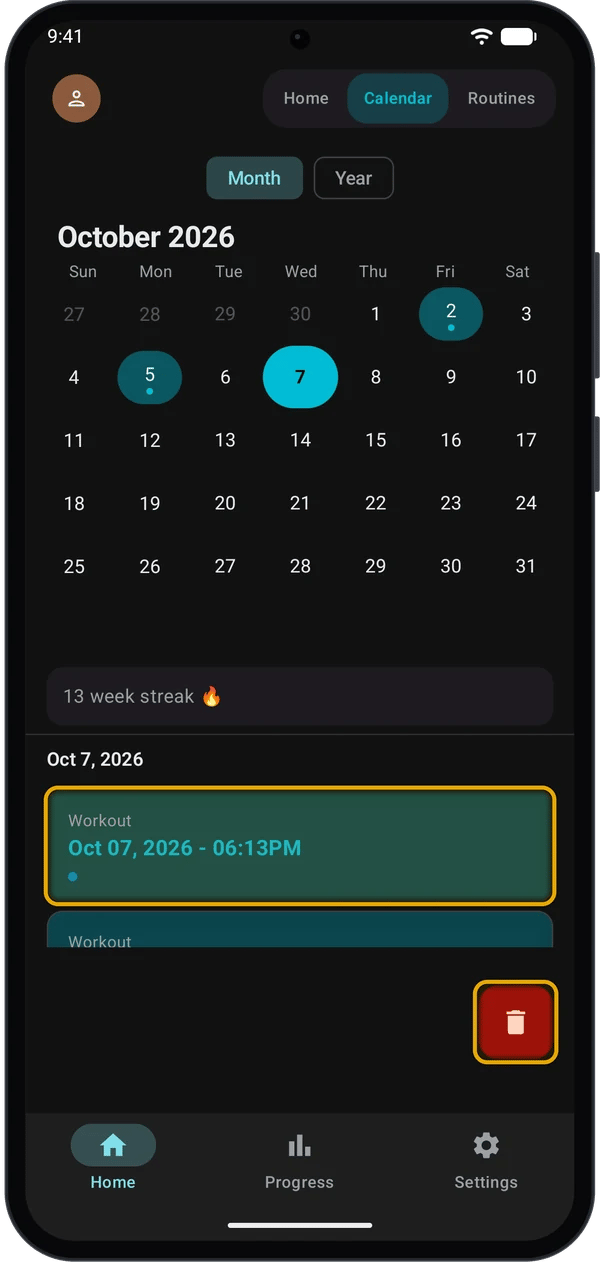
* **Home** → **Calendar** shows all your workouts on a calendar.
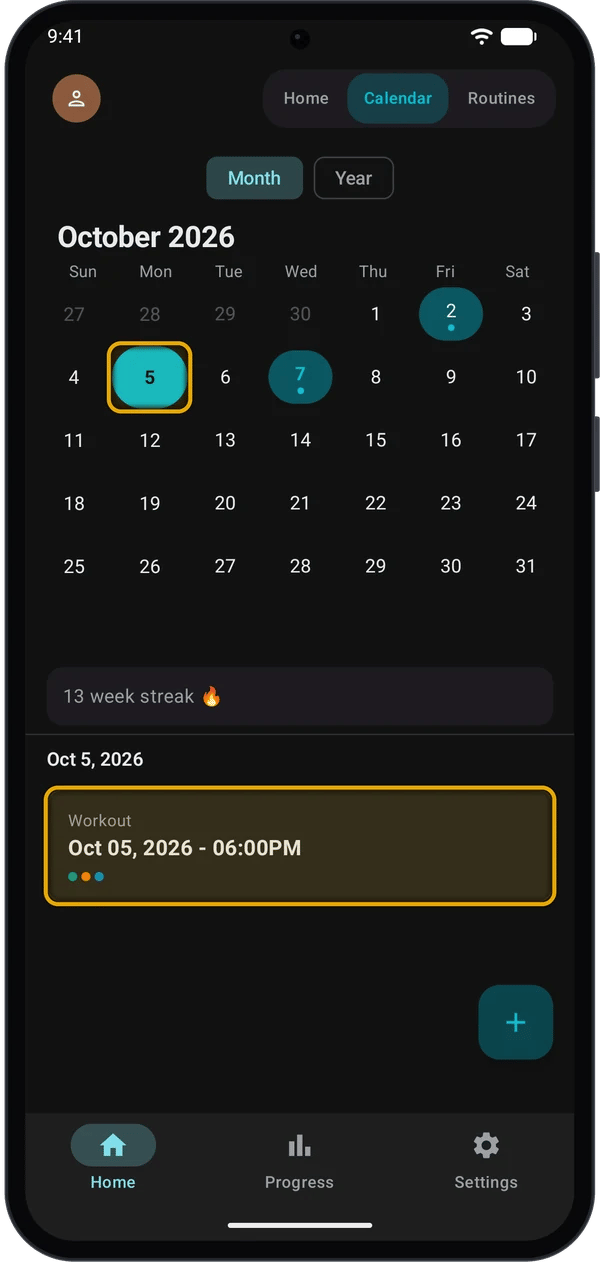
Make sure **Month** is selected. Days with a workout have a dot. Swipe left or right to change the month.
The workouts for that day show under the calendar. Each card shows the start date and time, and coloured dots for the body regions you trained.
The workout's detail screen opens.
**Year** shows the whole year, with each workout day marked. Tap the arrows to change the year. To open a workout, go back to **Month**.
Month view goes back 2 years from the current month.
### Your weekly streak
Under the month calendar, Kilo shows your streak, for example **13 week streak 🔥**. A streak is the number of weeks in a row, Monday to Sunday, with at least one workout.
* If you have not trained yet this week, the streak still counts from last week. It ends only when a full week has no workout.
* When you have no streak, the row does not show.
## Read a workout's details
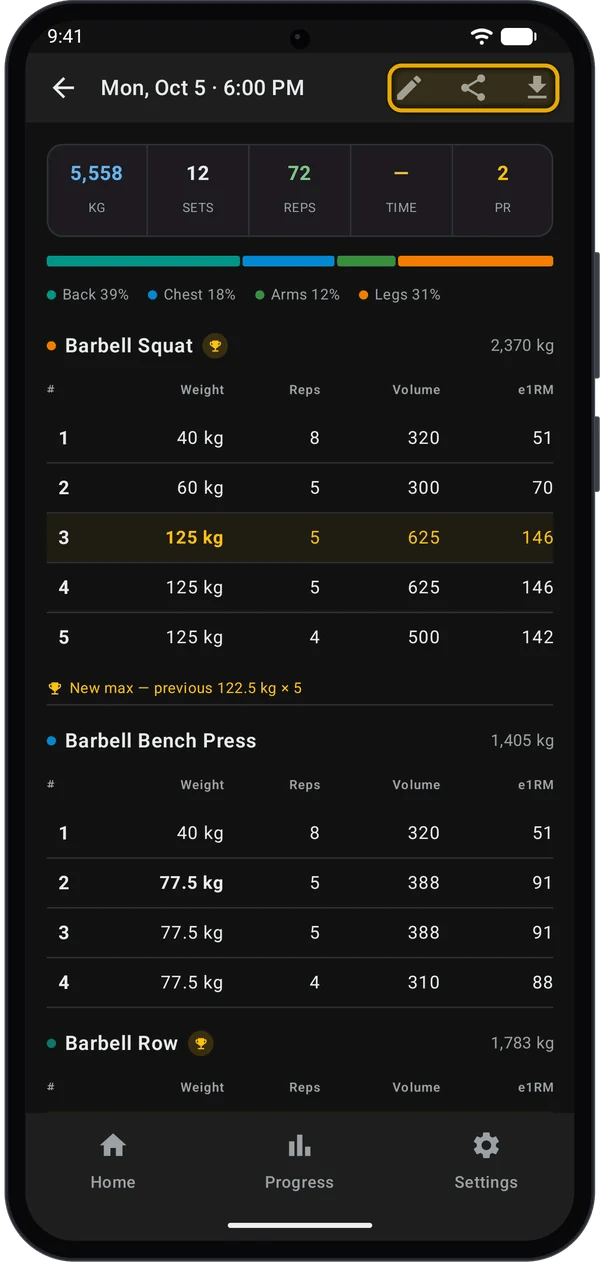
| Item | What it shows |
| - | - |
| **KG** (or **LBS**) | Total volume: weight × reps for all sets. |
| **SETS**, **REPS** | Totals for the workout. |
| **TIME** | How long the workout took. It shows **—** when Kilo has no end time, for example in some imported workouts. |
| **PR** | How many personal records this workout set. |
| Coloured bar | Volume by body region. Tap it to see muscle groups. Tap again to go back. |
| Exercise tables | **#**, **Weight**, **Reps**, **Volume** and **e1RM** for each set. |
A set that set a PR has a gold row, and the exercise name has a trophy. Under the table, Kilo shows **New max — previous 122.5 kg × 5**, or **New max** if it is your first record for that exercise.
The icons in the top bar:
| Icon | What it does |
| - | - |
| Pencil | Edit the workout. See [Edit a workout](#edit-a-workout). |
| Share | Share a summary image. See [Share a workout](#share-a-workout). |
| Download | Export the workout to CSV. See [Export a workout to CSV](/help/import-fit-and-export-csv#export-a-workout-to-csv). |
## Edit a workout
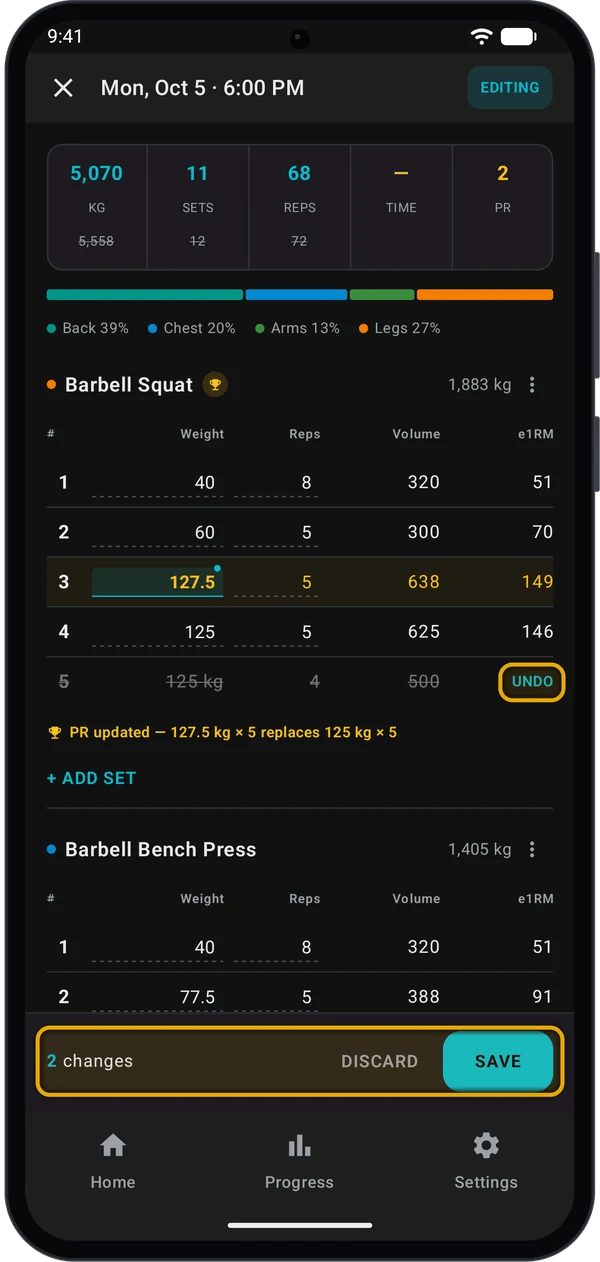
Open the workout and tap the pencil icon. **EDITING** shows in the top bar, and the weight and reps cells get a dashed underline.
| To | Do this |
| - | - |
| Change weight or reps | Tap the cell and type the new value. A changed cell is highlighted and has a dot. |
| Change the set type | Tap the set number. See [Supersets and Set Types](/help/supersets-and-set-types). |
| Delete a set | Long-press the set row, then tap **Delete set**. The set is struck through. Tap **UNDO** to bring it back. |
| Add a set | Tap **+ ADD SET** under the exercise. |
| Replace an exercise | Tap **⋮** next to the exercise name, then **Replace exercise**, and pick the new exercise. Its sets stay the same. |
| Remove an exercise | Tap **⋮**, then **Remove exercise**. |
| Add an exercise | Tap **+ ADD EXERCISE** at the bottom. |
The totals at the top change as you edit. When a total changes, the old value shows struck through under it.
The bar at the bottom counts your changes, for example **2 changes**.
* Tap **SAVE** to keep them. **SAVE** is grey until you change something.
* Tap **DISCARD**, or the **X** at the top left, to cancel. If you made changes, Kilo asks **Discard changes?** Tap **Discard**.
After **SAVE**, the pencil, share and download icons come back in the top bar.
Always leave edit mode with **SAVE**, **DISCARD** or **X**. If you press your phone's **Back** button, Kilo closes the screen without asking and keeps your unsaved edits open. They show up again, in edit mode, the next time you open a workout, even a different one. If this happens, tap **DISCARD**.
**Remove exercise** has no **UNDO**. To bring the exercise back, tap **DISCARD** and start again.
## How edits change your PRs
Kilo keeps one record per exercise: your heaviest weight. If two sets have the same weight, the set with more reps wins.
While you edit, Kilo shows what your changes will do under each exercise:
* **PR updated — 127.5 kg × 5 replaces 125 kg × 5**: you changed this workout's record set.
* **New max — previous 122.5 kg × 5**: after your edit, this workout beats the record that stood before it.
When you tap **SAVE**, Kilo works out the PRs again for each exercise in the workout, from all your saved workouts in date order. This can also change later workouts. For example, if you raise a weight in an old workout, a later workout that used to be a PR may no longer be one.
## PRs during a workout
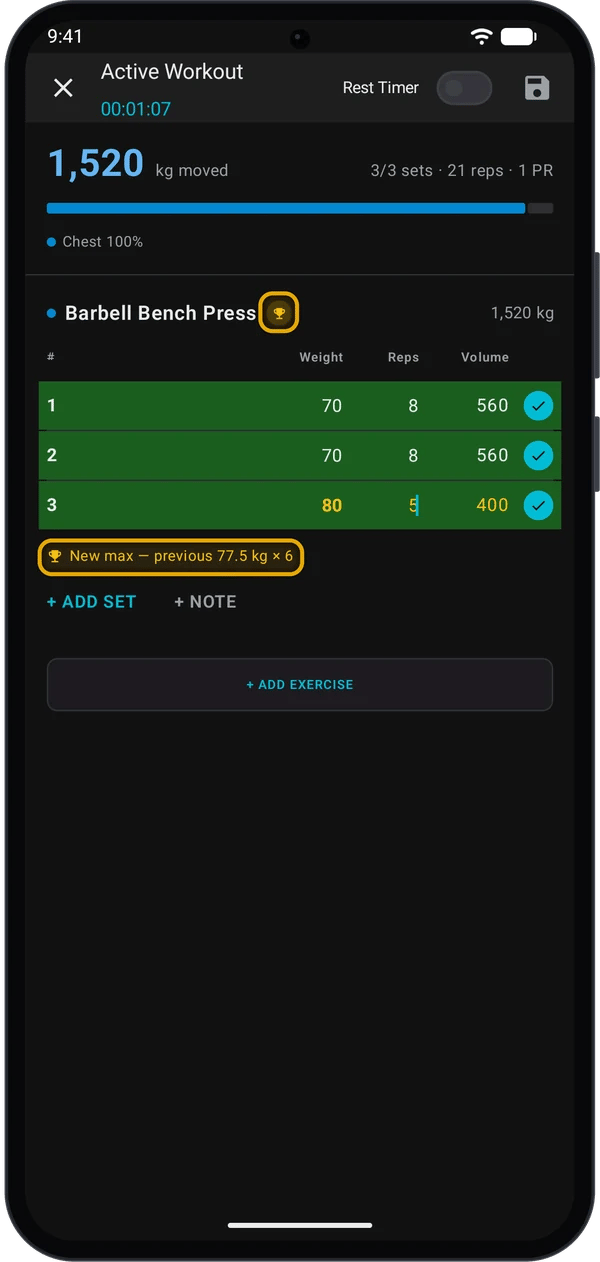
When you tick a set that beats your record, Kilo shows it straight away:
* A trophy next to the exercise name.
* The record set in gold.
* **New max — previous 77.5 kg × 6** under the sets, or **New max** for a first record.
* The PR count at the top, for example **3/3 sets · 21 reps · 1 PR**.
Only ticked sets with a weight count. On **Home**, a workout under **RECENT WORKOUTS** that set records shows its PR count, for example **1 PR** or **2 PRs**.
## The workout report
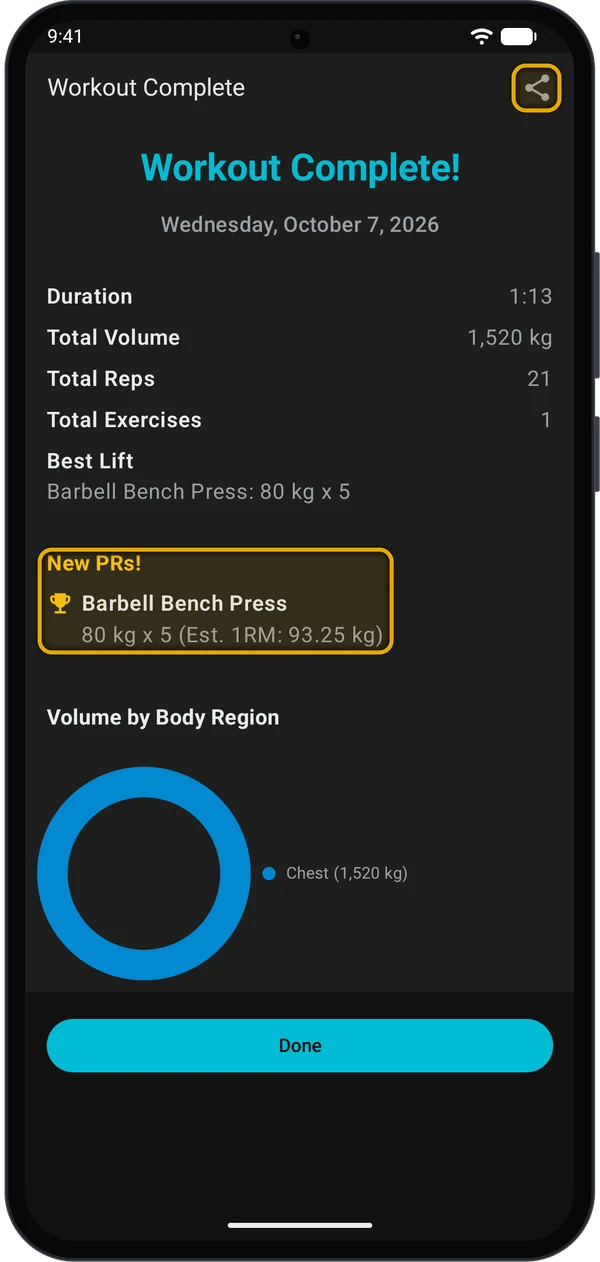
When you save a workout, Kilo opens **Workout Complete**. It shows:
* **Duration**, **Total Volume**, **Total Reps** and **Total Exercises**.
* **Best Lift**: your heaviest set.
* **New PRs!**: each new record, with an estimated 1RM.
* **Volume by Body Region**. Tap the chart to see **Volume by Muscle Group**.
Tap **Done** to go to **Home**.
You cannot open this report again after you tap **Done**. To share a past workout, use the share icon on its detail screen.
## Share a workout
* On **Workout Complete**, tap the share icon at the top right.
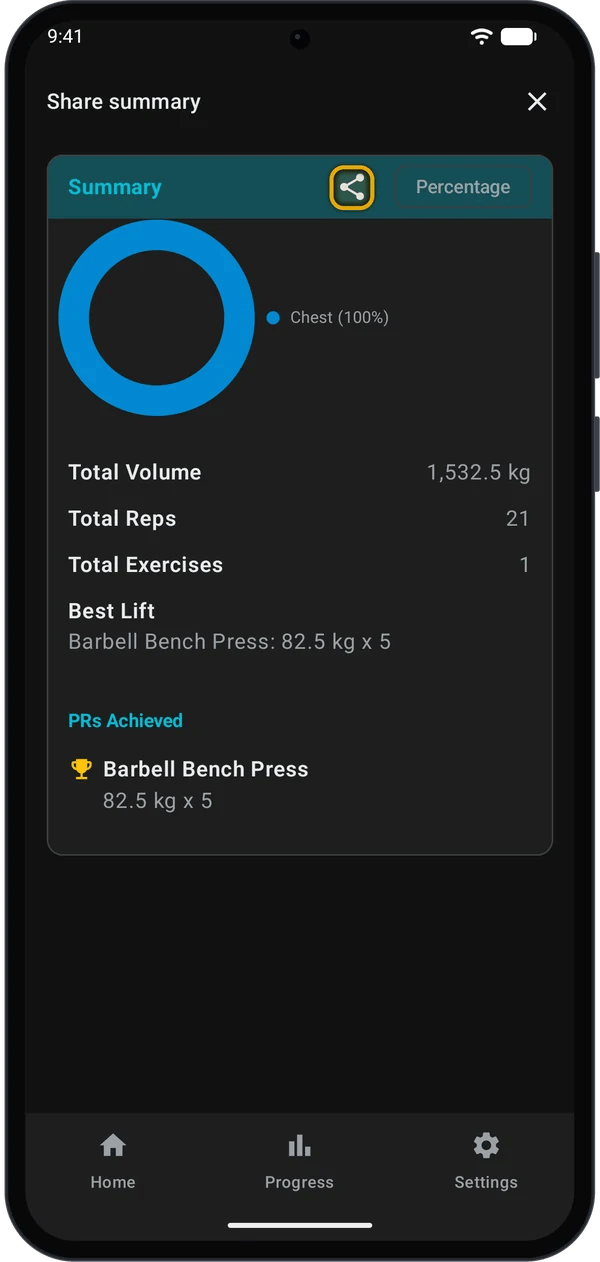
* For a past workout, open it and tap the share icon. **Share summary** opens. Tap the share icon on the **Summary** card.
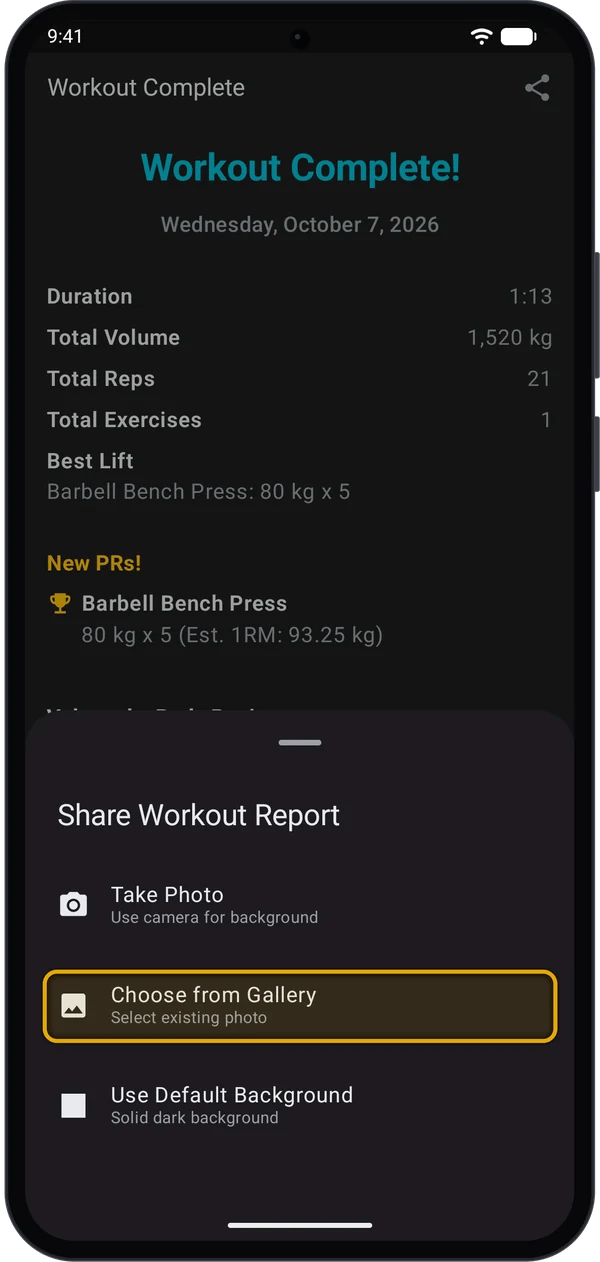
**Share Workout Report** opens:
* **Take Photo**: take a photo with your camera.
* **Choose from Gallery**: pick a photo on your phone.
* **Use Default Background**: a solid dark background. Android's share menu opens straight away.
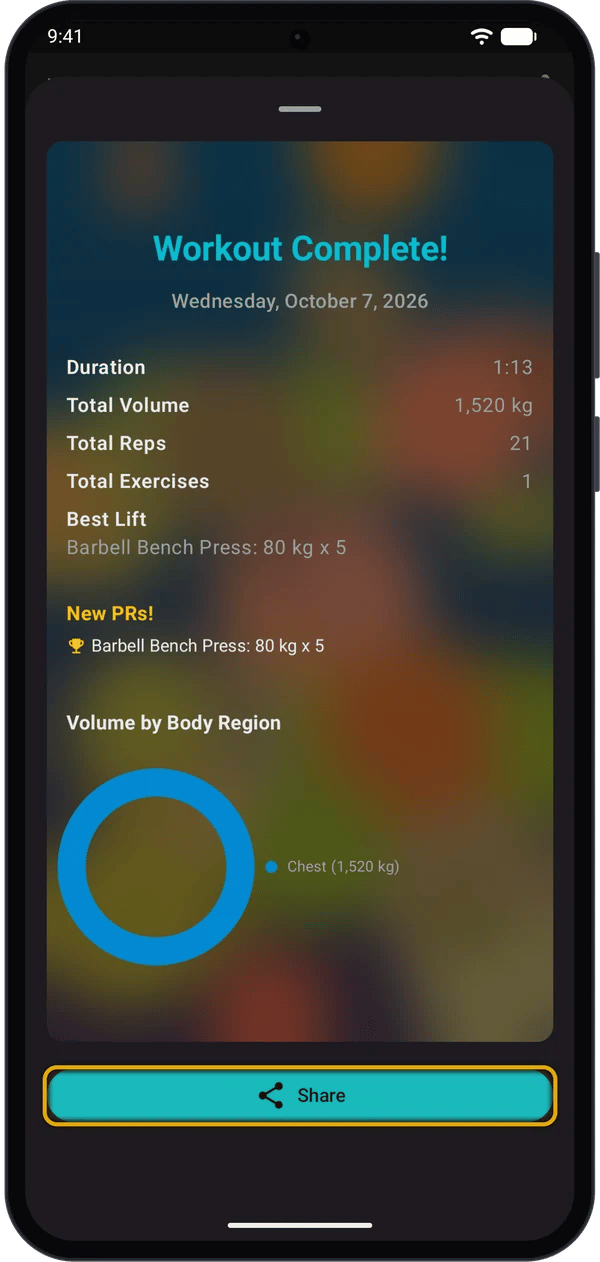
With a photo, Kilo shows a preview of the image. Tap **Share**, then pick an app.
The shared image lists up to 5 PRs. If you have more, it shows how many more, for example **+2 more PRs**.
## Delete workouts
Kilo deletes workouts as soon as you tap the delete button. There is no confirmation and no undo. To keep a copy, make a backup first. See [Back up and restore your data](/help/backup-and-restore).
Go to **Home** → **Calendar** and tap the day. Long-press a workout card. The card is highlighted, and the **+** button changes to a red delete button.
Tap other workout cards to add them. Tap a selected card again to clear it. If you clear all the cards, the delete button goes away.
Kilo deletes the selected workouts and their sets.
The workouts are gone from the day's list.
Kilo also removes the deleted workouts' PRs and works out your records again from the workouts that are left. An older workout can become your PR again.
## Quick fixes
Kilo goes to **Month** view but stays on the current month. Swipe right to go back to the month you want, then tap the day.
**Month** view goes back 2 years from the current month.
You have not changed anything yet. The bar shows **No changes**.
You left edit mode earlier with the **Back** button. Tap **DISCARD**, then **Discard**.
The gold row, the trophy and the **PR** count can stay as they were until you open the workout again. Go back, then open it again.
PR counts show on **Home** under **RECENT WORKOUTS** and on each workout's detail screen.
The streak shows only in **Month** view, and only if you have a workout this week or last week.
## Next steps
Mark warm-up, drop and failure sets.
See your lifts, records and weekly volume.
This documentation is built and hosted on [Mintlify](https://mintlify.com), a developer documentation platform.