> ## Documentation Index
> Fetch the complete documentation index at: https://thekiloapp.com/help/llms.txt
> Use this file to discover all available pages before exploring further.

# Back Up and Restore Your Kilo Data

> Create a backup, turn on Auto-Backup, choose between overwrite and new-file modes, find your backup files, and restore on the same or a new phone.

Kilo saves a backup file of your workout data. You can make one yourself, or let Kilo save one each time you finish a workout. Use the backup file to restore your data after you change phones or reinstall the app.

## What a backup contains

A backup is a single JSON file. It includes:

* Workouts and sets, including workout notes
* Routines (templates) and their exercises
* Training programs and your progress through them
* Exercises, including ones you created
* Personal records

A backup does **not** include:

* Your app settings, such as units, theme, rest timer and chart settings
* Your profile, including your name, height, weight and profile photo
* Your Pro status and trial days (see [Restore on a new phone](#restore-on-a-new-phone))

## Set up Auto-Backup

Auto-Backup is on by default.

<Steps>
  <Step title="Open the backup settings">
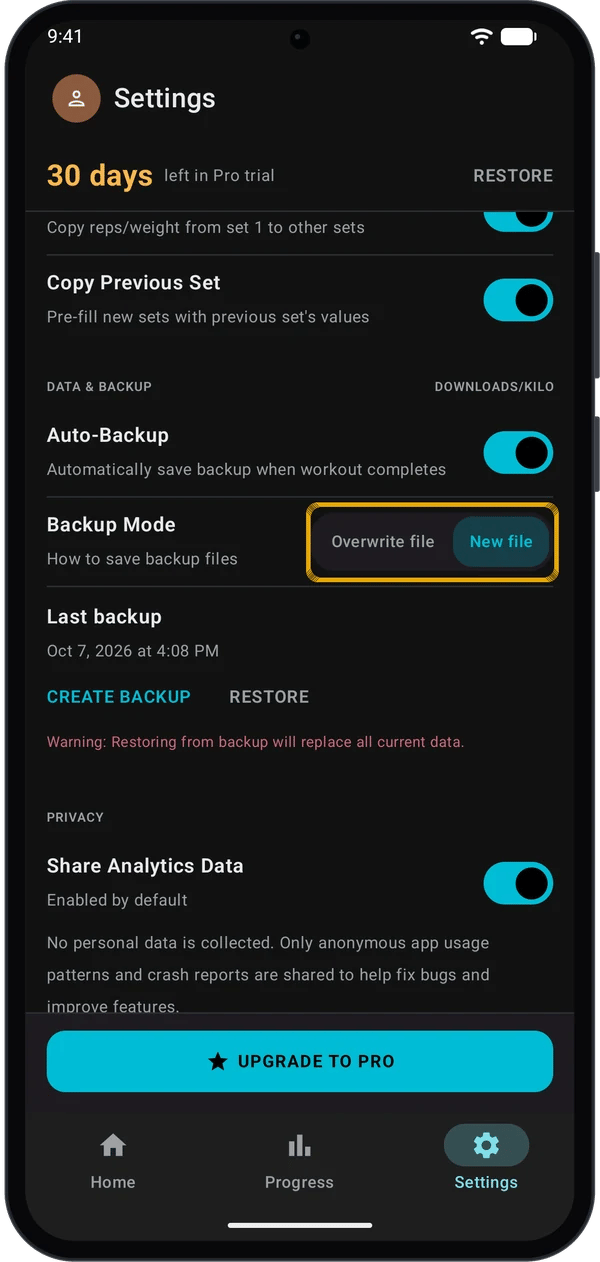
    Go to **Settings** and scroll to **DATA & BACKUP**.
  </Step>

  <Step title="Choose a backup mode">
    With **Auto-Backup** on, choose a **Backup Mode**. See the table below.

    <div className="kilo-shots">
      <img className="kilo-phone" src="https://mintcdn.com/kiloapp/Zx2NBVIt2D71ASCO/images/backup-and-restore/backup-mode.webp?fit=max&auto=format&n=Zx2NBVIt2D71ASCO&q=85&s=7813f1d194e0f8c171257cb138157772" alt="Backup Mode set to New file in the DATA and BACKUP section of Settings" width="600" height="1262" data-path="images/backup-and-restore/backup-mode.webp" />
    </div>
  </Step>

  <Step title="Finish a workout">
    Kilo writes a backup each time you complete a workout. The **Last backup** line shows the date and time of the last successful backup.
  </Step>
</Steps>

<Note>
  If an automatic backup fails, Kilo shows an **Auto-backup failed** message. Successful backups show no message.
</Note>

### Backup modes

| Mode | File name | What happens |
| - | - | - |
| **Overwrite file** (default) | `kilo_auto_backup.json` | Kilo replaces the previous backup with the new one. You always have one automatic backup file. |
| **New file** | `kilo_auto_backup_<date>_<time>.json` | Kilo keeps every automatic backup. Each file has the date and time in its name. |

<Tip>
  Use **New file** if you want a copy from before a change, such as before you end a program. The files take up more space over time.
</Tip>

### Where backup files are saved

Automatic backups are saved to **Downloads** → **Kilo**. The **DOWNLOADS/KILO** label in the **DATA & BACKUP** heading shows this location.

## Create a backup manually

<Steps>
  <Step title="Tap CREATE BACKUP">
    Go to **Settings** → **DATA & BACKUP** and tap **CREATE BACKUP**.
  </Step>

  <Step title="Choose where to save">
    The file picker suggests a name such as `kilo_backup_2026-10-07_164749.json`. Pick a folder, then tap **Save**.

    <div className="kilo-shots">
      <img className="kilo-phone" src="https://mintcdn.com/kiloapp/Zx2NBVIt2D71ASCO/images/backup-and-restore/create-backup-save.webp?fit=max&auto=format&n=Zx2NBVIt2D71ASCO&q=85&s=75a3c4239c779a809c93f66f244157b2" alt="File picker in the Kilo folder with the suggested file name kilo_backup_ and a Save button" width="600" height="1262" data-path="images/backup-and-restore/create-backup-save.webp" />
    </div>
  </Step>
</Steps>

<Check>The backup file is in the folder you chose. The **Last backup** line does not change after a manual backup.</Check>

## Restore a backup

<Warning>
  Restoring replaces **all** of your current workouts, routines, programs and personal records with the data in the backup. Kilo cannot undo this. Create a backup of your current data first if you want to keep it.
</Warning>

<Steps>
  <Step title="Tap RESTORE">
    Go to **Settings** → **DATA & BACKUP** and tap **RESTORE**.
  </Step>

  <Step title="Pick the backup file">
    Select a backup `.json` file. It can be in any folder on your phone.
  </Step>

  <Step title="Confirm">
    Kilo shows **Restore from Backup?**. Tap **Restore** to replace your data, or **Cancel** to stop. Nothing changes until you tap **Restore**.

    <div className="kilo-shots">
      <img className="kilo-phone" src="https://mintcdn.com/kiloapp/Zx2NBVIt2D71ASCO/images/backup-and-restore/restore-confirm.webp?fit=max&auto=format&n=Zx2NBVIt2D71ASCO&q=85&s=b8bfc91c5256d9b7c58c862f908fddec" alt="Restore from Backup dialog with Cancel and Restore buttons" width="600" height="1262" data-path="images/backup-and-restore/restore-confirm.webp" />
    </div>
  </Step>

  <Step title="Restart Kilo">
    When the restore finishes, Kilo says **Restore completed! Restart the app to see changes.** Close Kilo and open it again.
  </Step>
</Steps>

<Check>After you restart, your routines, workouts and programs match the backup.</Check>

## Restore on a new phone

<Steps>
  <Step title="Create a backup on the old phone">
    Follow [Create a backup manually](#create-a-backup-manually). Use the newest file in **Downloads** → **Kilo** if Auto-Backup is on.
  </Step>

  <Step title="Copy the file to the new phone">
    Move the `.json` file to the new phone by any method you use for files.
  </Step>

  <Step title="Install Kilo and restore">
    Install Kilo on the new phone and open it once. Then go to **Settings** → **DATA & BACKUP** → **RESTORE**, pick the file, and tap **Restore**.
  </Step>

  <Step title="Restart Kilo and check your plan">
    Restart Kilo. Your workouts and routines are back. Your name, profile photo and app settings are not in the backup, so set them again.
  </Step>
</Steps>

<Note>
  The 30-day trial is not in the backup. On a new phone, the trial starts the first time you open Kilo there. Pro status is also not in the backup. Check your plan in **Settings** after you restore.
</Note>

## Quick fixes

<AccordionGroup>
  <Accordion title="Last backup says Never">
    Auto-Backup has not completed a backup yet. Finish a workout with Auto-Backup on. A manual backup does not update this line.
  </Accordion>

  <Accordion title="Restore says Invalid backup file">
    The file is not a Kilo backup. Choose a `kilo_backup_` or `kilo_auto_backup` file.
  </Accordion>

  <Accordion title="Restore failed">
    The backup may come from a newer version of Kilo. Update Kilo from the Play Store, then restore again. If it still fails, try a different backup file.
  </Accordion>
</AccordionGroup>

## Next steps

<CardGroup cols={2}>
  <Card title="Free vs Pro" icon="star" href="/help/kilo-free-vs-pro">
    See what the trial and Free include.
  </Card>

  <Card title="Get started" icon="rocket" href="/help/getting-started">
    Set up Kilo and log your first workout.
  </Card>
</CardGroup>


This documentation is built and hosted on [Mintlify](https://mintlify.com), a developer documentation platform.